
Managing your Business Timings on Kayana Partner Admin
Last updated Mar 2, 2026
This guide explains how to manage your business operating hours through the Kayana Partner Admin. It covers how to set specific opening and closing times your property, takeaway, delivery, dine-in, and collection services.
Step 1: Access Timing Settings
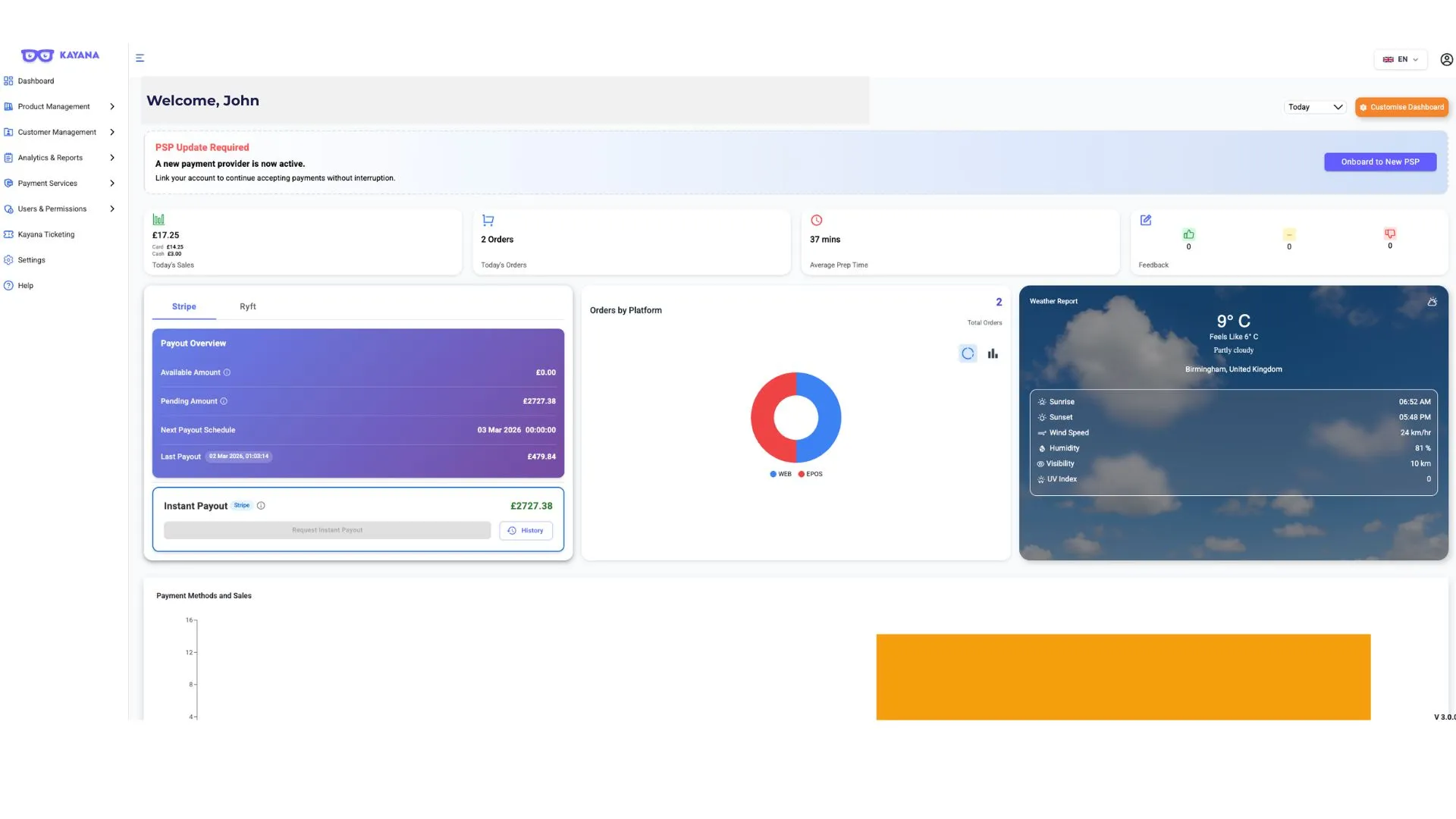
- Log in to the Kayana Partner Admin using your credentials. View of the settings grid on Kayana Partner Admin.
- From the dashboard, select Settings from the left-hand menu. View of the Timings dashboard on the Kayana Partner Admin, displaying a list of timing categories including Property Timings, Takeaway, Delivery, Dine-In, and Collection.
- From the settings grid, click on Timings.
Step 2: Understand the Timing Categories
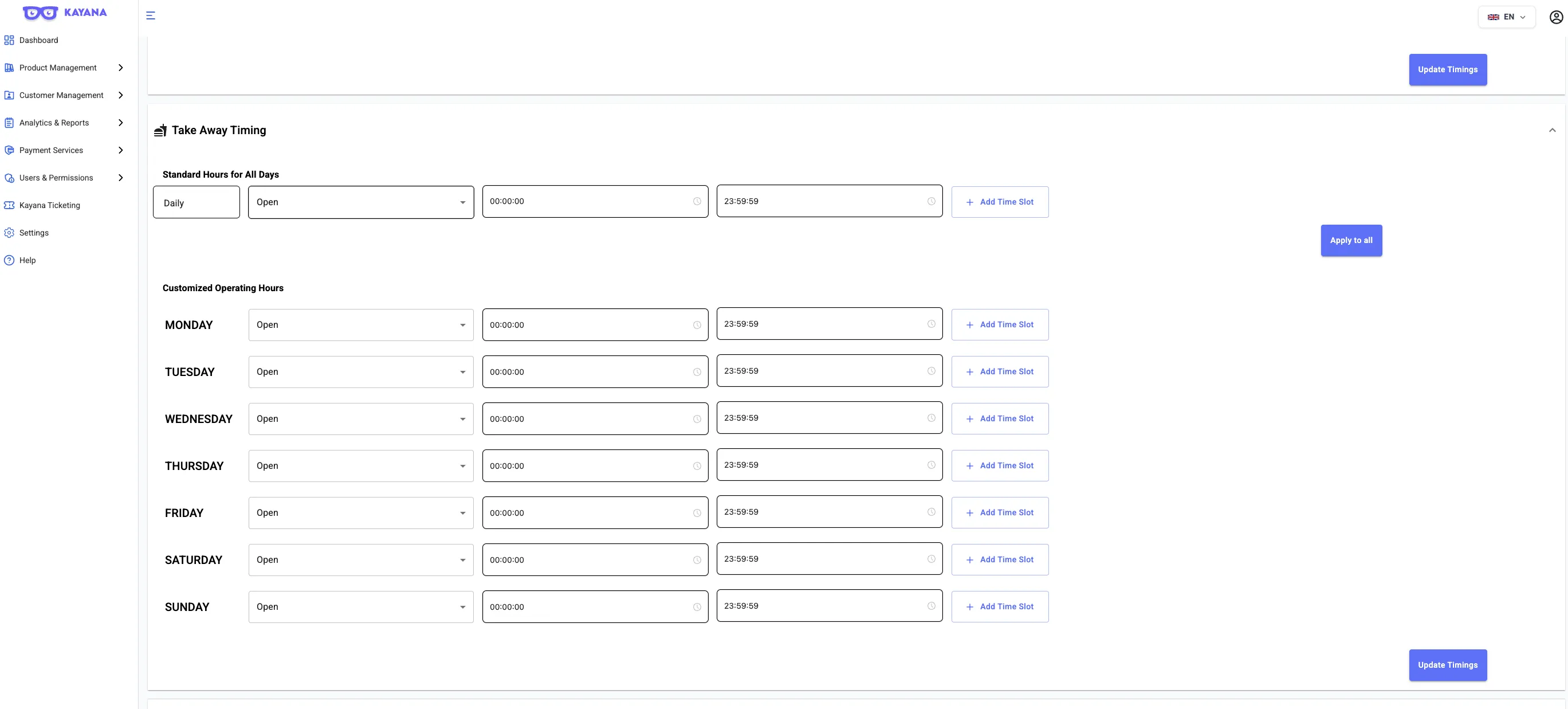
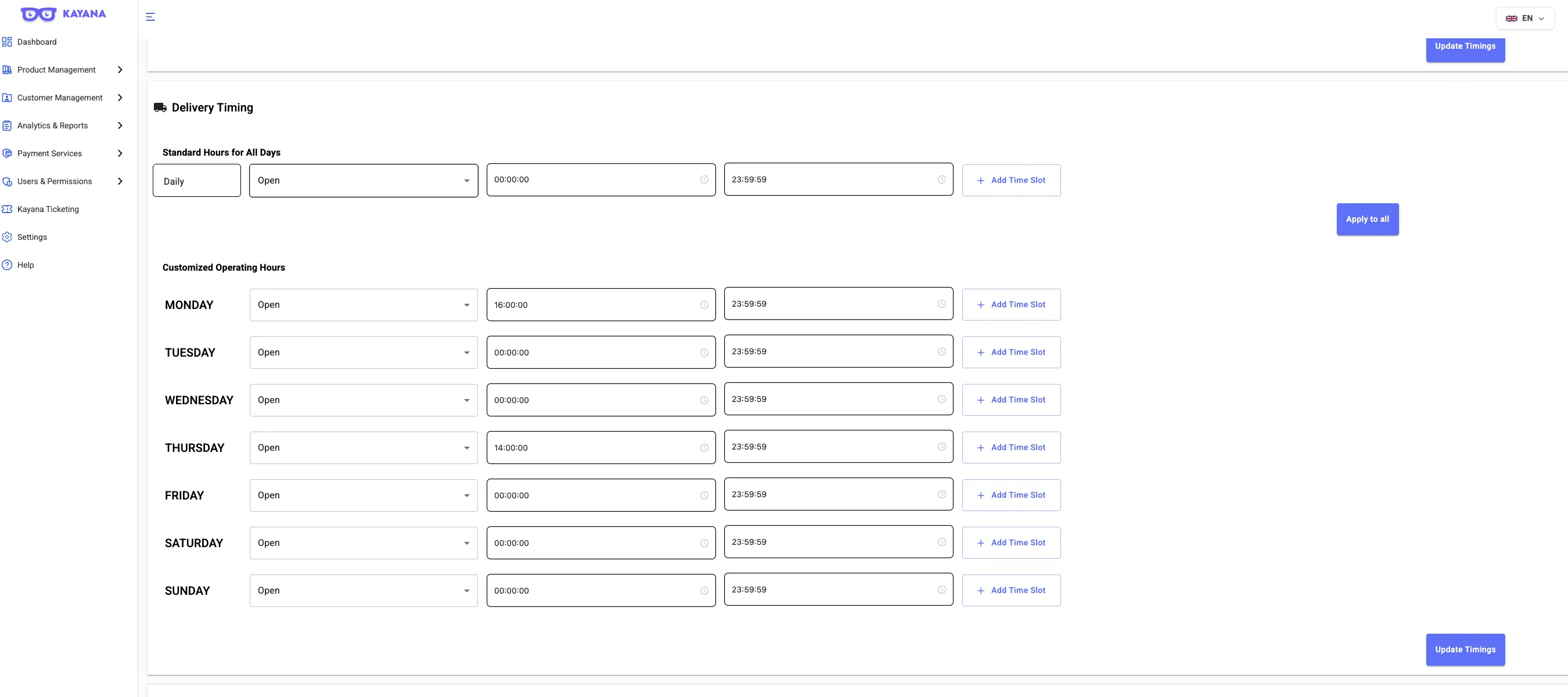
You can set independent operating hours for each of these services:
- Property Timings: Your overall building or storefront opening and closing hours.
- Takeaway: The window when customers can place orders for pickup.
- Delivery: The specific hours your staff or drivers are available to fulfill delivery orders.
- Dine-In: The hours your seating area is open for customers to eat on-site.
- Collection: Scheduled time slots specifically for pre-ordered pickups.
Step 3: How to Update Your Hours
The process is the same for all five categories listed above. Follow these steps for each section:
Individual Day Management(Customized Operating Hours)
- Locate the day of the week you wish to edit.
- Select Open or Closed from the dropdown menu.
- If open, enter your Start Time and Stop Time in the input fields.
- Add/Remove Slots: If you close for a break (e.g., lunch), click Add Time Slot to create a second window. Use the Remove button to delete a slot.
Bulk Update (Standard Hours)
- To apply the same schedule to the entire week quickly, go to the Standard Hours for All Days section at the bottom of the category.
- Enter your preferred start and end times.
- Click the Update Timings button to apply these hours to every day of the week instantly.
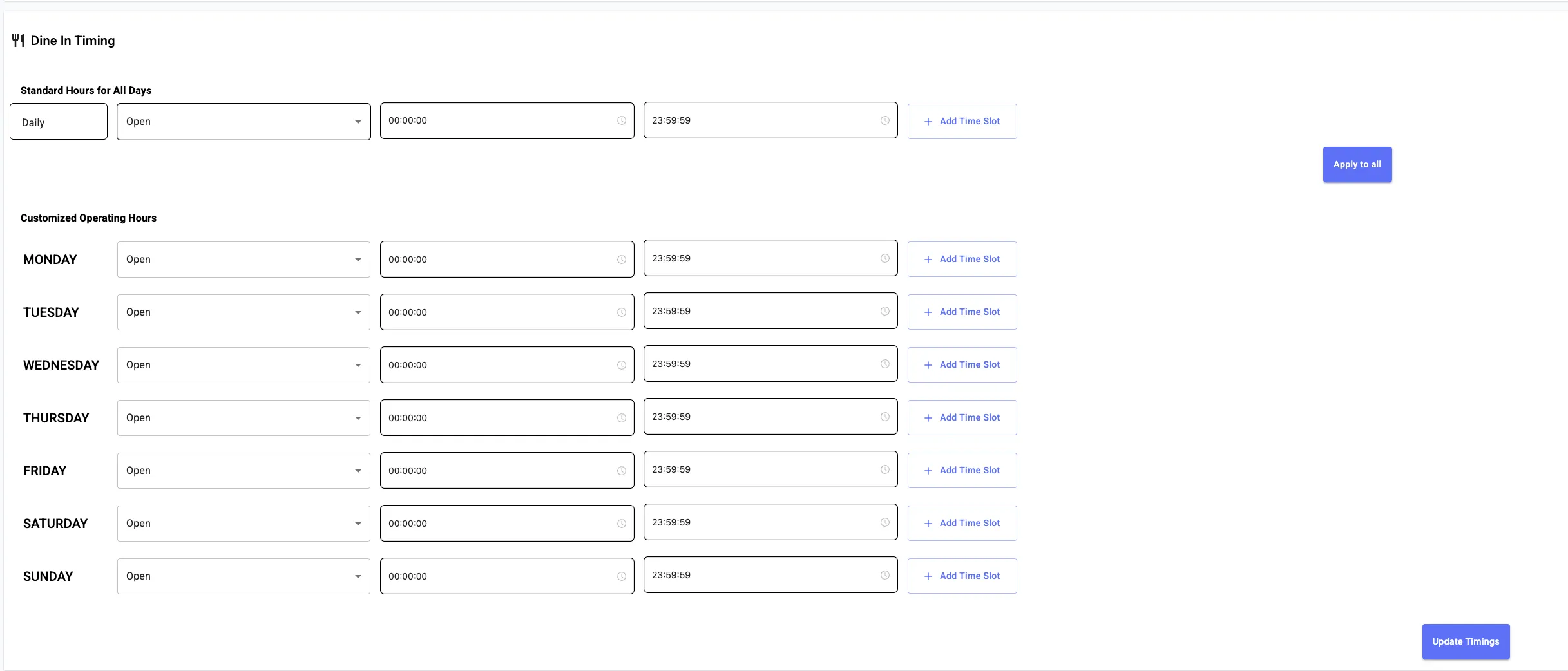
Step 4: Finalize Changes
Repeat these steps for Takeaway, Delivery, Dine-In, and Collection as needed. Always ensure you click Update at the bottom of each section to save your changes.
🔄 Next Steps
Once your operating hours are configured in Kayana Partner Admin, continue with the Web Ordering Setup Guide to ensure your online ordering availability aligns with your updated service timings.