
How to Apply a Promo Code When Booking a Ticket on Kayana Tickets
Last updated May 22, 2026
This guide explains how to apply a promo code when booking an event ticket on Kayana Tickets. Promo codes are created by the Event Organiser via Kayana Partner Admin and can be entered at checkout to receive a discount on the ticket booking.
How to Apply a Promo Code on Kayana Tickets
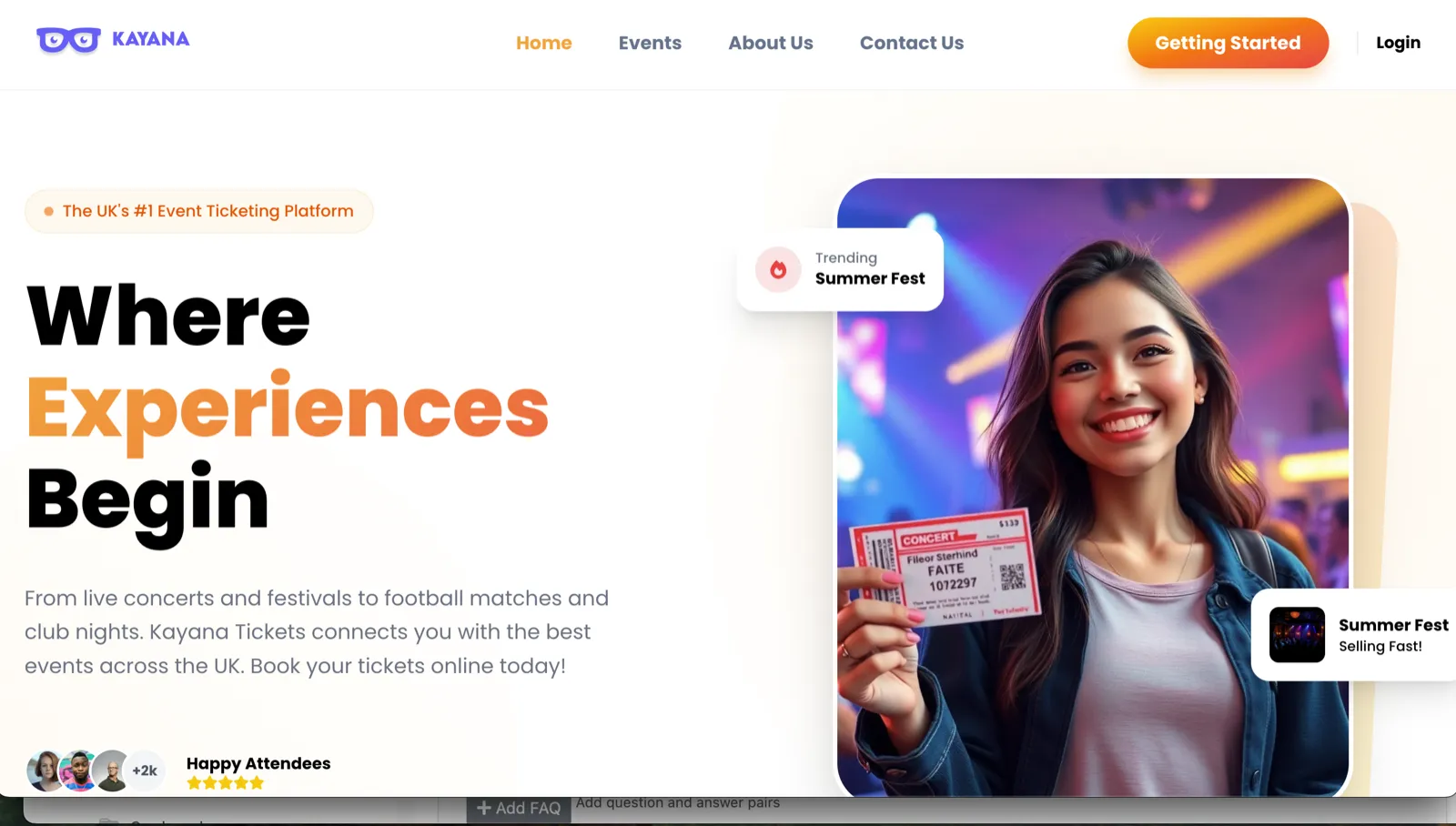
Step 1. Go to the Kayana Tickets platform. Kayana Tickets: https://kayanatickets.com

Step 2. From the top navigation bar, click Events.
Step 3. Browse or search for the event you wish to book.
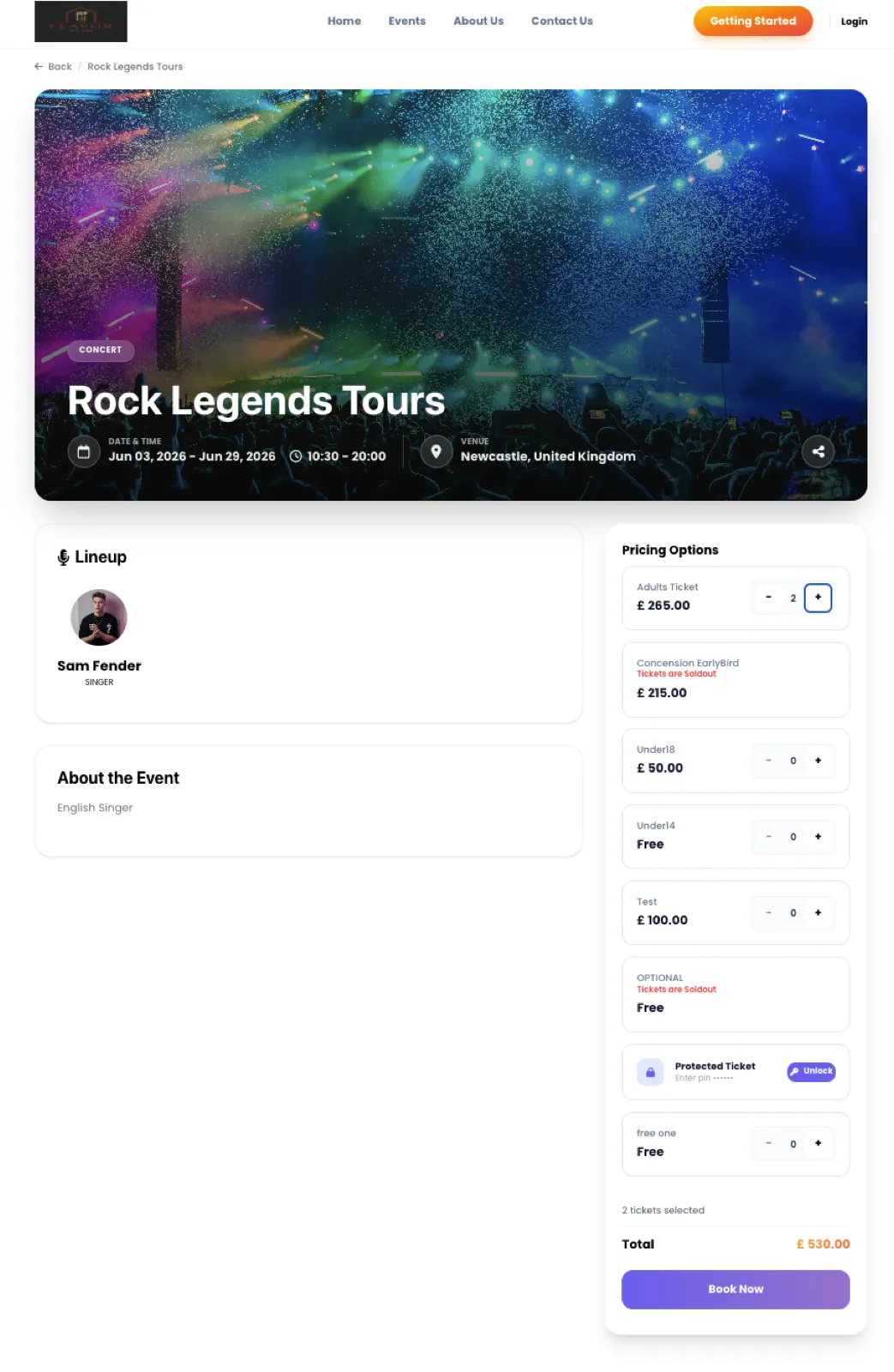
Step 4. Click the Book Now button on the event card for the event you wish to attend. You will be taken to the event's landing page.
Step 5. On the right side of the event landing page, you will find the available ticket options. Some events may have different price-tiered ticket options (e.g. Adults Ticket, VIP Ticket, Early Bird).
Step 6. Select the ticket type and the number of tickets you wish to purchase.
Step 7. Click the Book Now button below the ticket selection to proceed to checkout.
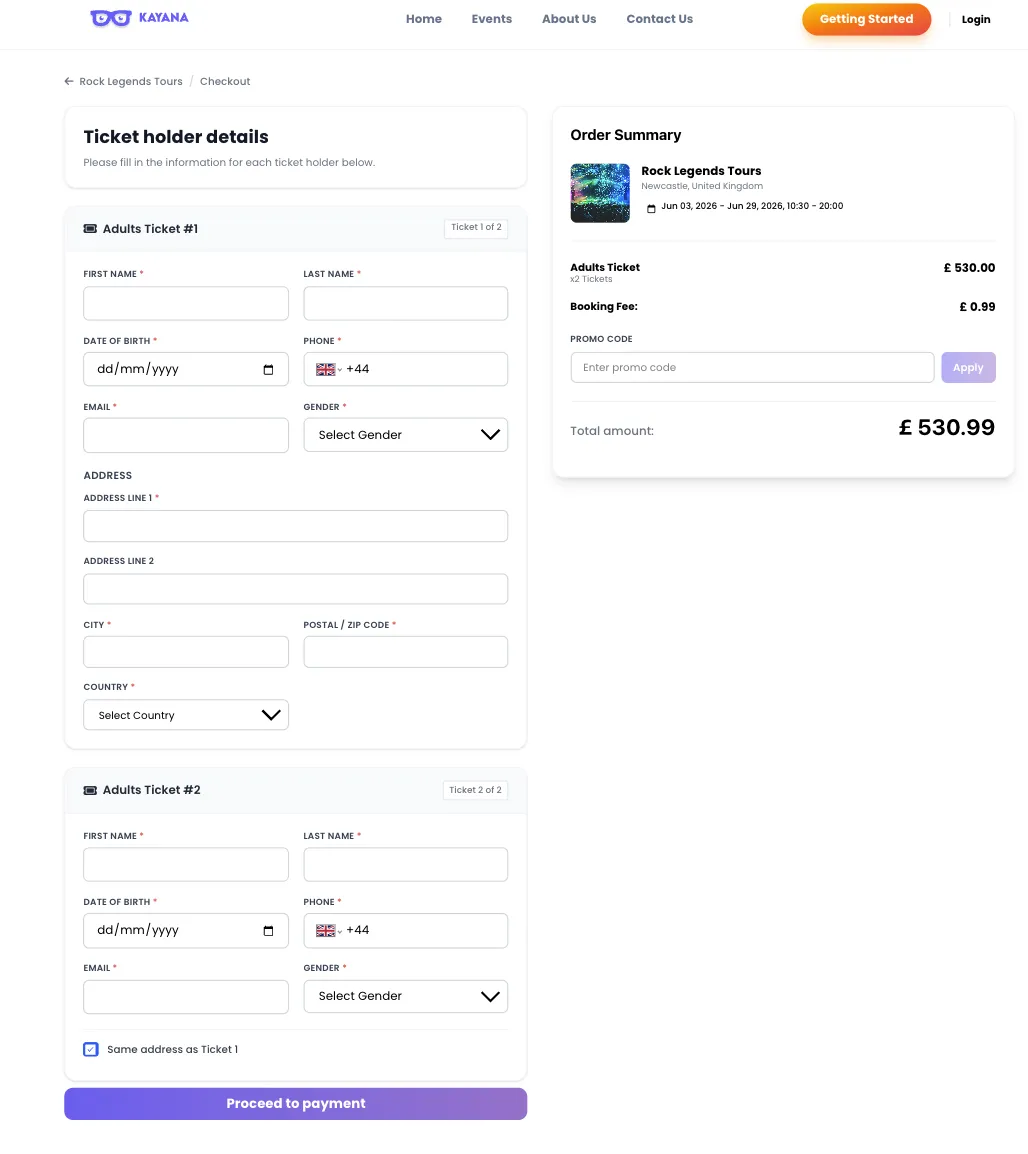
Step 8. You will arrive at the checkout page — Ticket Holder Details. Fill in the required details for each ticket holder:
Personal Details
- First Name — required
- Last Name — required
- Date of Birth — required (dd/mm/yyyy)
- Phone — required (country code pre-filled, e.g. +44)
- Email — required
- Gender — required (select from dropdown)
Address
- Address Line 1 — required
- Address Line 2 — optional
- City — required
- Postal / Zip Code — required
- Country — required (select from dropdown)
Step 9. On the right side of the checkout page, you will see the Order Summary showing the event name, location, dates, ticket type, ticket price, and booking fee.
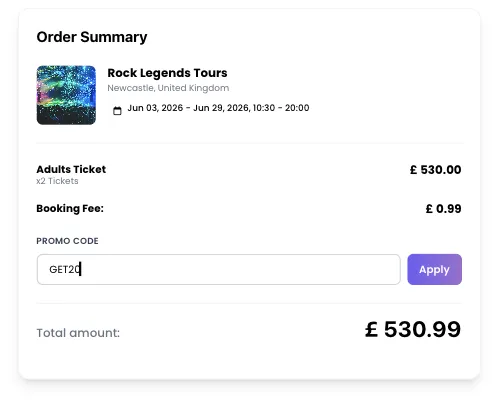
Step 10. Locate the Promo Code field in the Order Summary section. Enter your promo code in the field and click the Apply button.
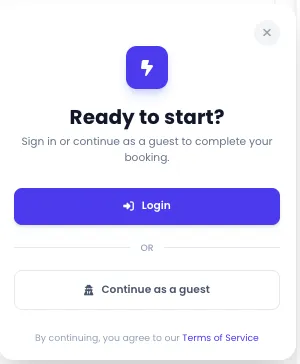
Step 11. You will be prompted to sign in to your Kayana Tickets account. If you do not have an account, you will also have the option to Continue as Guest.
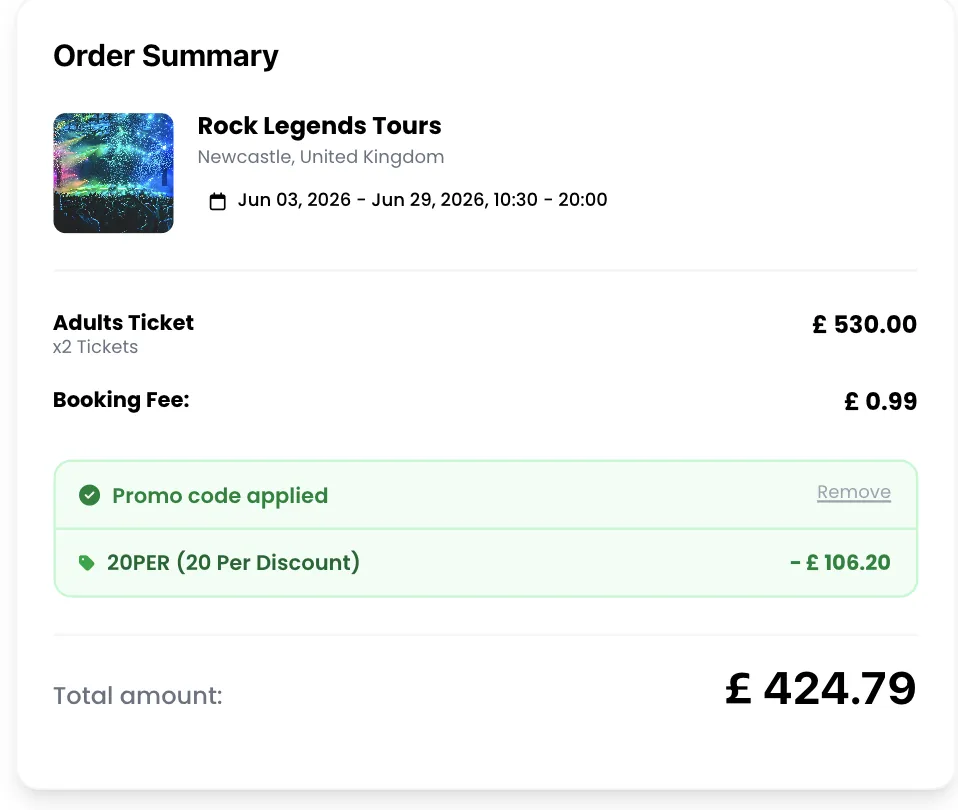
Step 12. On the next step, once the promo code has been successfully applied, you will see the text "Promo code applied" confirming the discount has been applied to your order. The total amount in the Order Summary will reflect the discounted price.
Step 13. Enter your card details and click the Pay button to complete the booking.
Your ticket will be confirmed and a digital ticket with a unique QR code will be sent to you.
Next Steps
To learn how to create a promo code for Kayana Tickets, refer to the How to Create a Promo Code for Kayana Tickets from Kayana Partner Admin guide.