
Guide to Setting Up Deliveroo Integration for Your Business via Partner Admin
Last updated Apr 8, 2026
Overview
Deliveroo is an online food delivery marketplace that allows restaurants to receive and fulfil orders placed by customers through the Deliveroo platform.
To integrate Deliveroo with Kayana, the business must first be onboarded through Deliveroo's Partner Hub, after which the Deliveroo plugin can be enabled from Partner Admin.
Step 1: Deliveroo Onboarding (Handled by Kayana CSR Team)
Before enabling the integration in Partner Admin, the restaurant must first be onboarded on the Deliveroo platform.
1. Partner Requests Deliveroo Integration
The business contacts the Kayana Customer Support/CSR team requesting Deliveroo integration.
2. Verify Partner Hub Account
The restaurant must have an active Deliveroo Partner Hub account.
If the account does not exist, it must be created before proceeding.
3. CSR Logs in to Deliveroo Platform
The Kayana CSR team logs into the Deliveroo onboarding platform.
4. Submit Site Activation Request
The CSR fills out the Site Activation Request Form by preparing and submitting a CSV file containing the required business details.
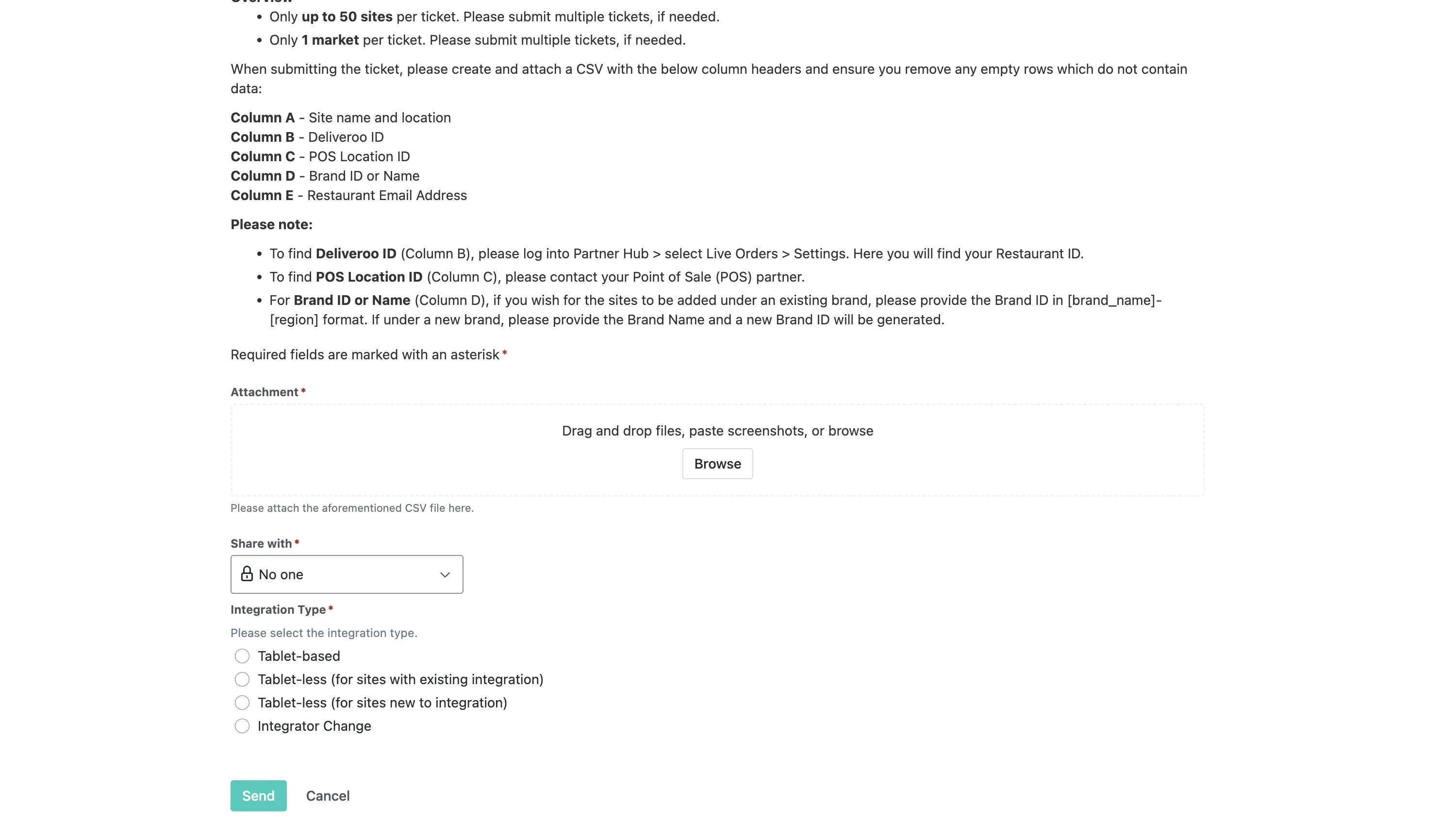
The CSV file typically includes the following information:
- Site name and restaurant details
- Deliveroo ID
- POS Location ID (Property ID)
- Brand name
- Restaurant email address
Once the CSV file with the required details is prepared, it is submitted through the Site Activation Request process.
5. Submit the Activation Request
After entering the required information, the CSR clicks Send.
The onboarding request is then submitted to Deliveroo.
6. Deliveroo Creates the Ordering Site
Once onboarding is successful:
- Deliveroo creates an ordering page for the business.
- Orders can be placed through this Deliveroo ordering platform.
- The partner can share the Deliveroo page with customers.
Step 2: Enable Deliveroo Plugin in Partner Admin
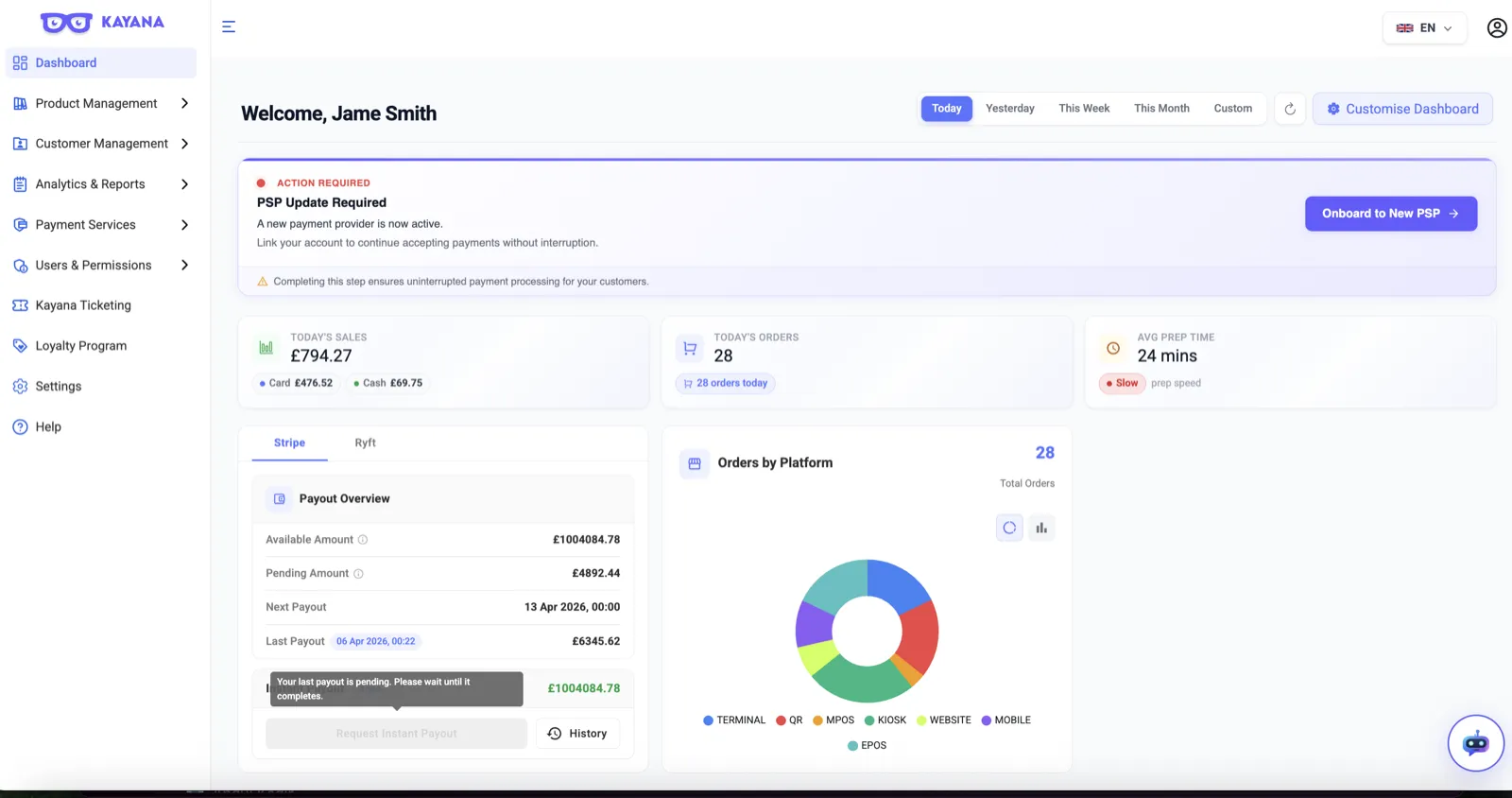
After the Deliveroo site is created, the partner must enable the integration in Partner Admin.
1. Log in to Partner Admin
Log in using your Partner Admin credentials. Link: https://partners.kayana.co.uk/
2. Open Settings
From the left-hand sidebar, select Settings.
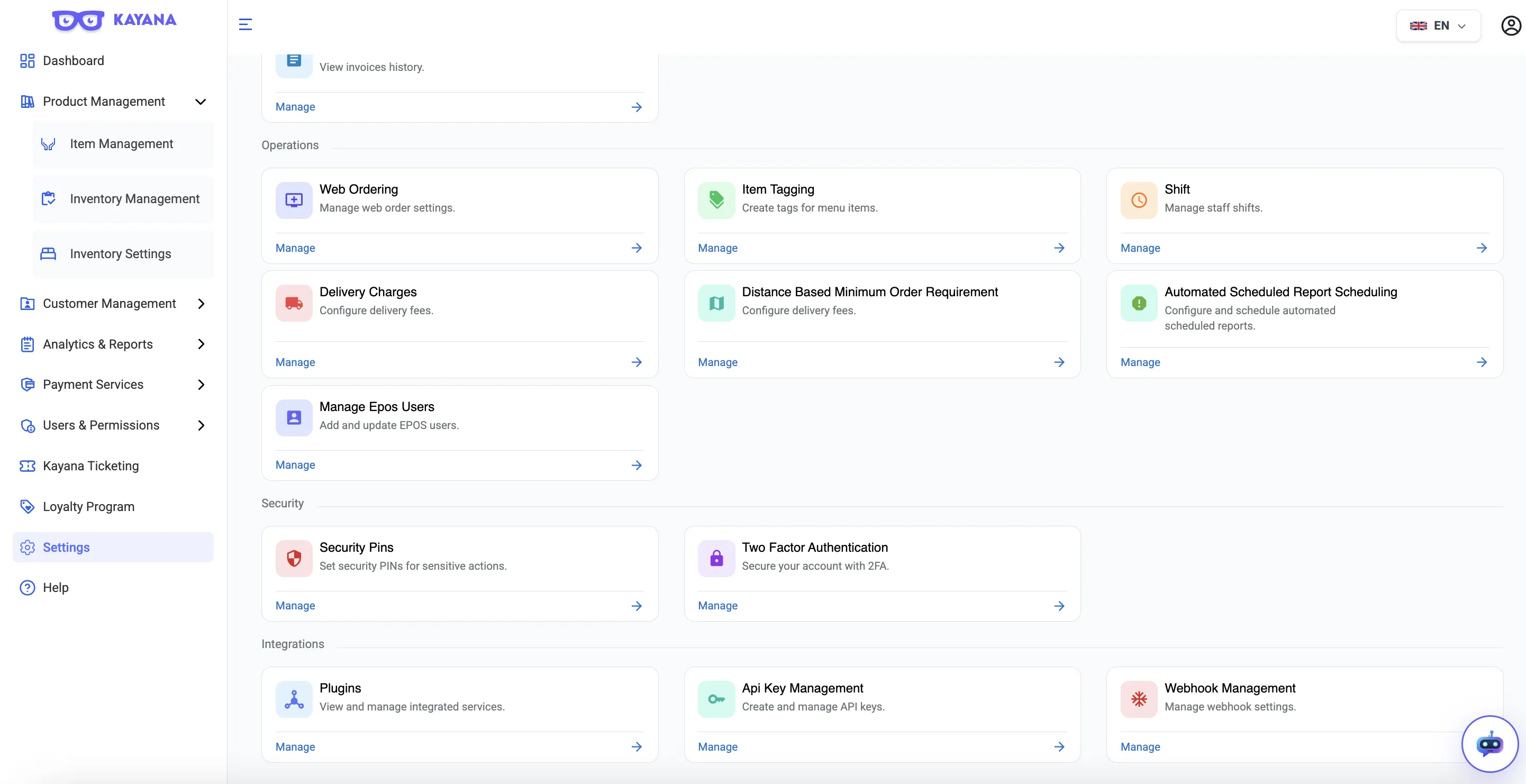
3. Go to Plugins
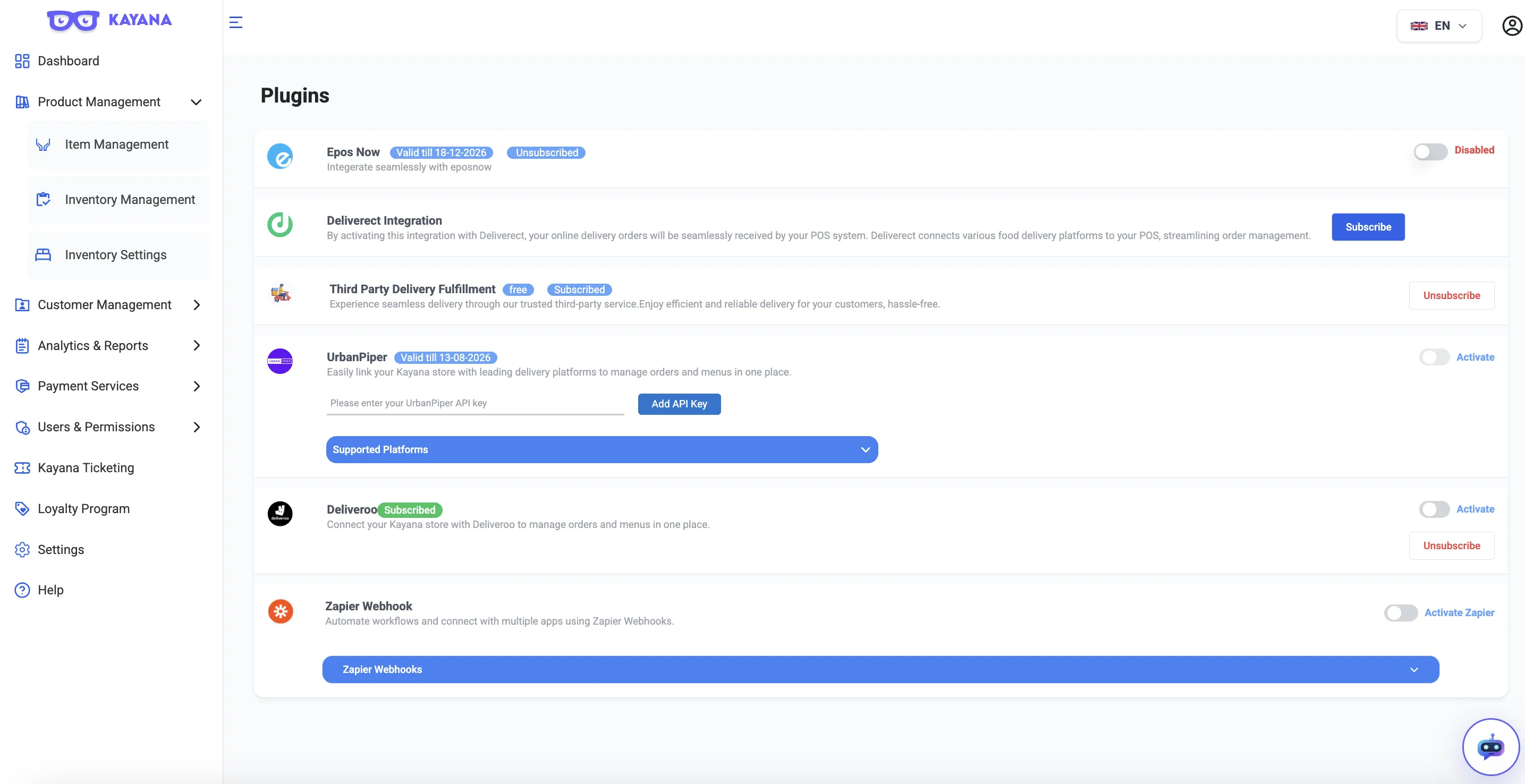
Click Plugins.
4. Subscribe to Deliveroo
Locate the Deliveroo plugin card.
Click Subscribe.
Complete the checkout process and payment.
5. Enable the Deliveroo Toggle
After subscription is complete, enable the Deliveroo toggle button to activate the integration.
Step 3: Enable Deliveroo for Menu Items
Once the plugin is activated, Deliveroo must be enabled for specific items.
1. Go to Product Management
From the left-hand sidebar, select Product Management.
2. Open Item Management
Click Item Management.
3. Sync Deliveroo
Return to the Item Management screen.
Enable the Master "Sync Deliveroo" toggle to finalise the configuration.
This syncs your selected menu items with Deliveroo.
4. Select an Item
Locate the item you want to enable Deliveroo for.
Click the Edit action.
5. Enable Deliveroo for the Item
Scroll down and find the Deliveroo toggle.
Switch it ON.
6. Repeat for Other Items
Enable Deliveroo for all items you want to make available on Deliveroo.
Result
Once the sync is complete:
- Selected items will be available on the Deliveroo platform.
- Orders placed on Deliveroo will be received and processed through Kayana.
Next Steps
If your business manages marketplace orders through UrbanPiper, you may also need to configure the UrbanPiper integration to ensure Deliveroo orders are properly routed and synced.
Refer to the UrbanPiper Integration with Kayana guide for the setup steps.