
How to Set Your Own Delivery Charges
Last updated Jun 3, 2025
This guide explains how to set and manage custom delivery fees based on distance using the Kayana Partner Admin.
1. Access Delivery Settings
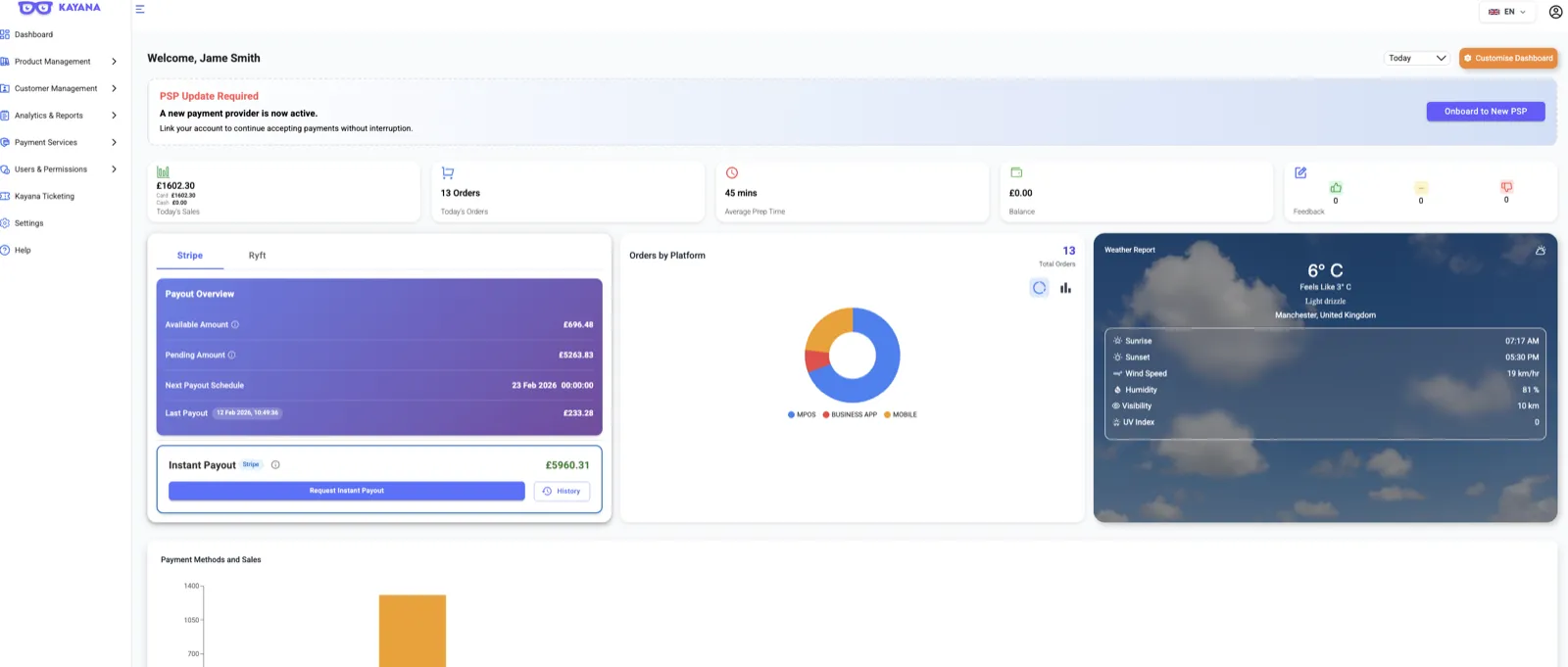
- Log in to the Kayana Partner Admin.
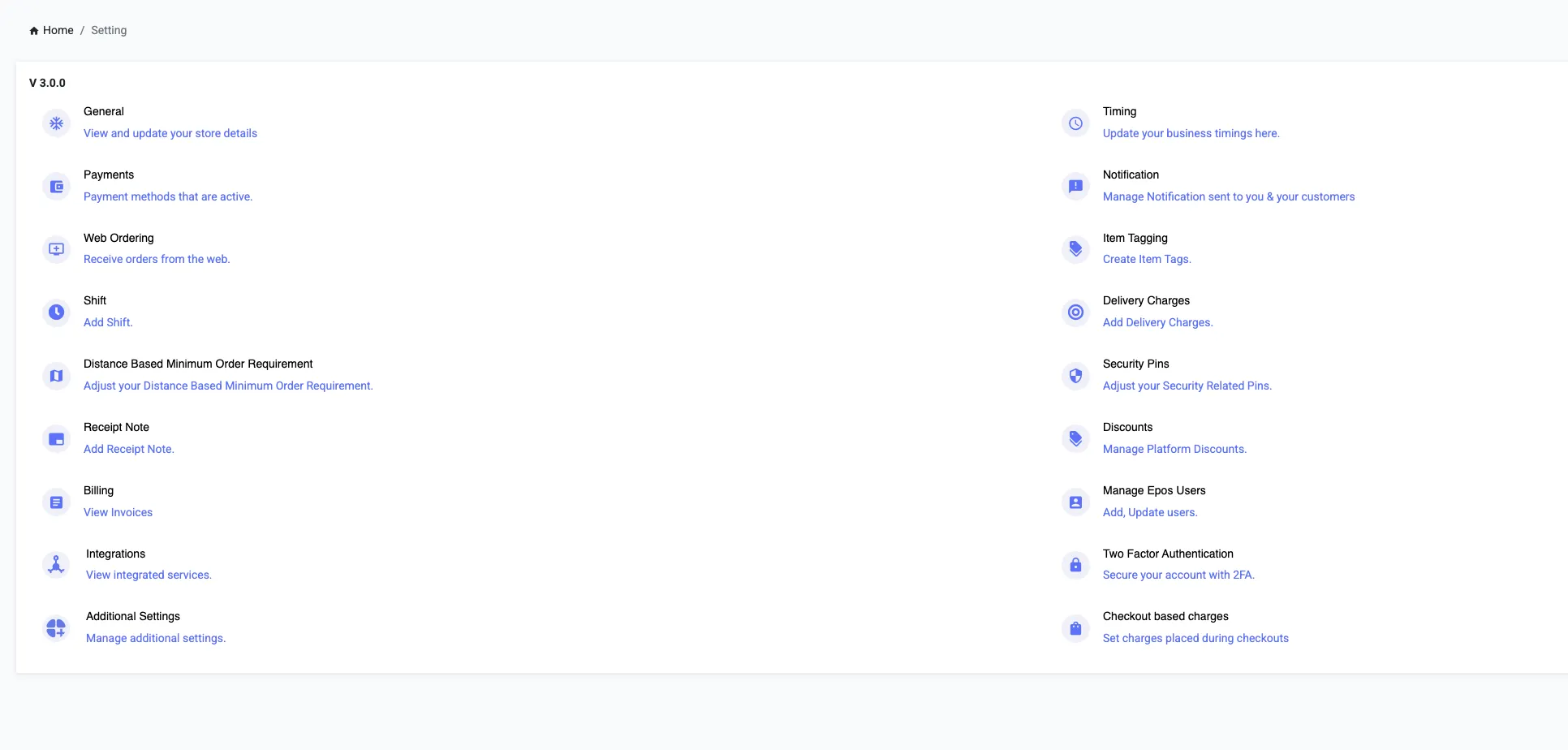
- From the left-hand menu, select Settings, then click Account Settings.
- Click on the Delivery Charges option.
2. Managing Existing Charges
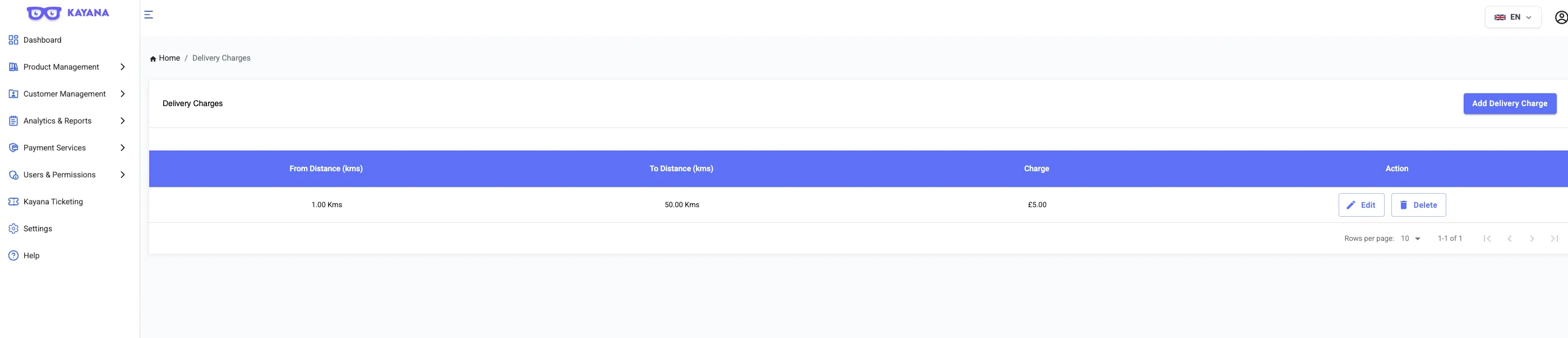
Once the Delivery Charges page opens, you will see a table with the following columns:
- From Distance / To Distance: The range for the delivery fee.
- Charge: The cost assigned to that specific range.
- Action: Use the Edit or Delete buttons to modify or remove the existing delivery charge.
3. Adding a New Delivery Charge
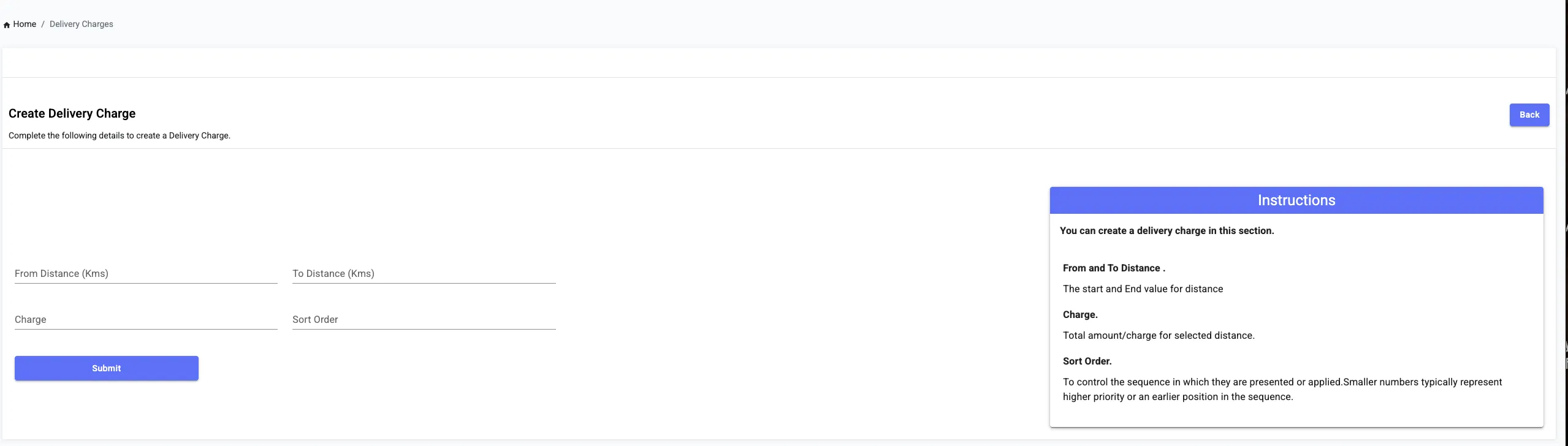
To create a new delivery charge rule, click the Add Delivery Charge button at the top of the page. You will need to fill in the following fields:
- From Distance (Kms): The starting distance for this charge.
- To Distance (Kms): The maximum distance for this charge.
- Charge: The total amount to be charged for this specific range.
- Sort Order: Determines the sequence in which charges are applied. Lower numbers have higher priority (e.g., a "0" or "1" will be processed before a "10").
Summary of Terms
- Distance Range: Defines the start and end values for the delivery area.
- Charge: The fixed fee for the selected distance.
- Sort Order: Controls the priority and sequence of your delivery rules.
Next step: 👉 Continue with How to Configure Web Ordering Settings to manage your ordering link, delivery zones, and online opening hours so everything works seamlessly together.