
How to Set Public or Private Event Visibility in Kayana Partner Admin
Last updated Feb 18, 2026
Overview
This guide explains how to set an event as Public or Private from the Kayana Partner Admin. It also covers optional PIN protection for private events and how event visibility impacts discoverability.
Steps to Set Event Visibility
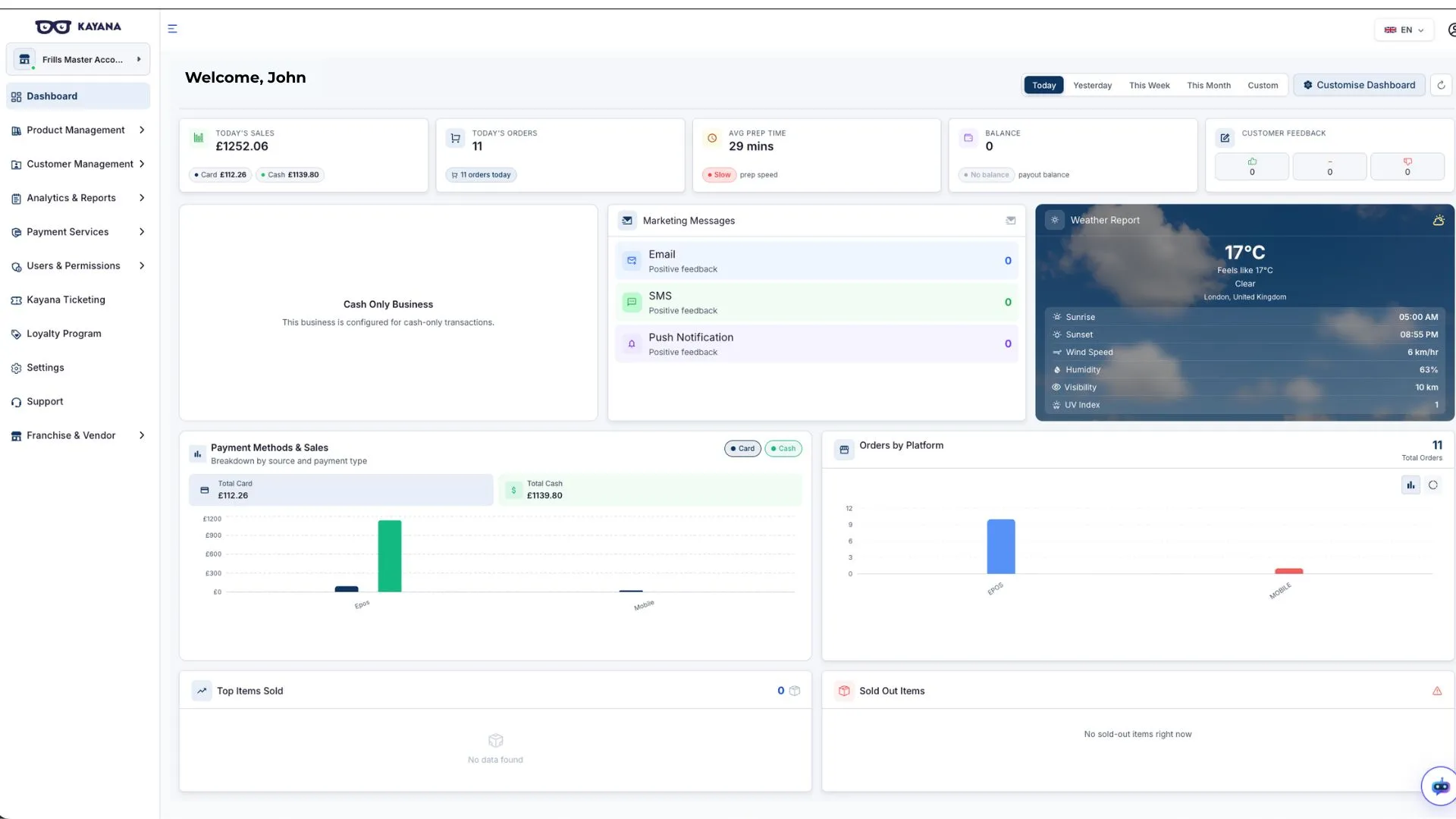
- Log in to the Kayana Partner Admin using your credentials. A view of the Kayana Ticketing dashboard overview
- From the left-hand sidebar, navigate to Kayana Ticketing. A view of the All events screen
- Click on All Events.
- Locate or search for the event you want to update.
- Events are displayed in a table with details such as Event, Status, Revenue, Tickets Sold, Ticketing, and Actions. A view of the action buttons next to each event in the tabular view.
- Click on the Edit button under the Actions column for the selected event. A view of the Edit event page.
- On the Edit Event page, locate the Public/Private toggle at the top.
- Set the visibility as required:
- Public: Event will be visible on the Kayana Tickets website.
- Private: Event will not be publicly visible.
Optional: Enable PIN Protection

- On the same page, you will see the PIN Protection toggle (next to the visibility toggle).
- This toggle is off by default.
To enable PIN protection:
- Switch the toggle ON.
- Enter a 6-digit PIN in the field that appears.
Note:
- PIN protection is required for private events if you want restricted access.
- This step is optional — private events can exist with or without a PIN.
Important Notes
- Private events (with or without PIN) are not visible on the Kayana Tickets website.
- These events can only be accessed via a direct event link.
How to Access the Event Link
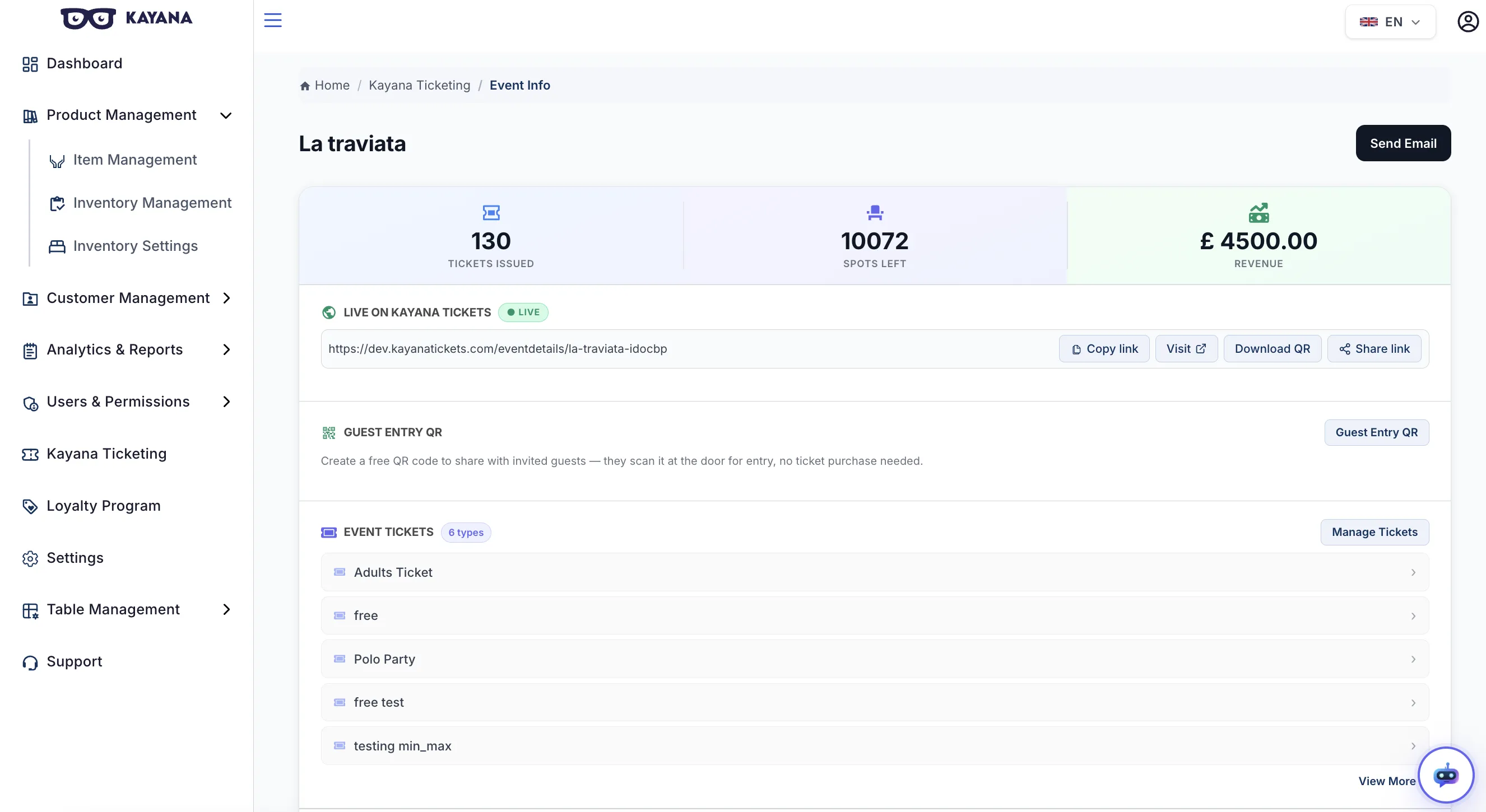
- Go back to the All Events page.
- Click on the event to open its details page.
- Copy and share the generated event link with attendees.
Expected Outcome
- Public events will be visible and discoverable on the Kayana Tickets platform.
- Private events will remain hidden and accessible only via direct link (and PIN, if enabled).
Summary
- Use Public for open, discoverable events.
- Use Private for restricted or invite-only events.
- Enable PIN protection for an added layer of access control when needed.
Next Steps
After creating a PIN-protected private event, you can share the event link and PIN with your attendees.
To understand the attendee experience, including how users access an event page, enter the event PIN, and book tickets, refer to the guide on How to Discover and Book Event Tickets on Kayana Tickets. This guide walks through the complete ticket booking journey from the attendee's perspective.