
How to Create a Promo Code for Kayana Tickets from Kayana Partner Admin
Last updated May 22, 2026
This guide explains how to create a promo code specifically for Kayana Tickets from Kayana Partner Admin. The process is the same as creating a Platform Discount — the only difference is that you must select Kayana Tickets as the platform. Once created, this promo code can be shared with customers and applied at checkout when booking event tickets on Kayana Tickets.
How to Create a Promo Code for Kayana Tickets
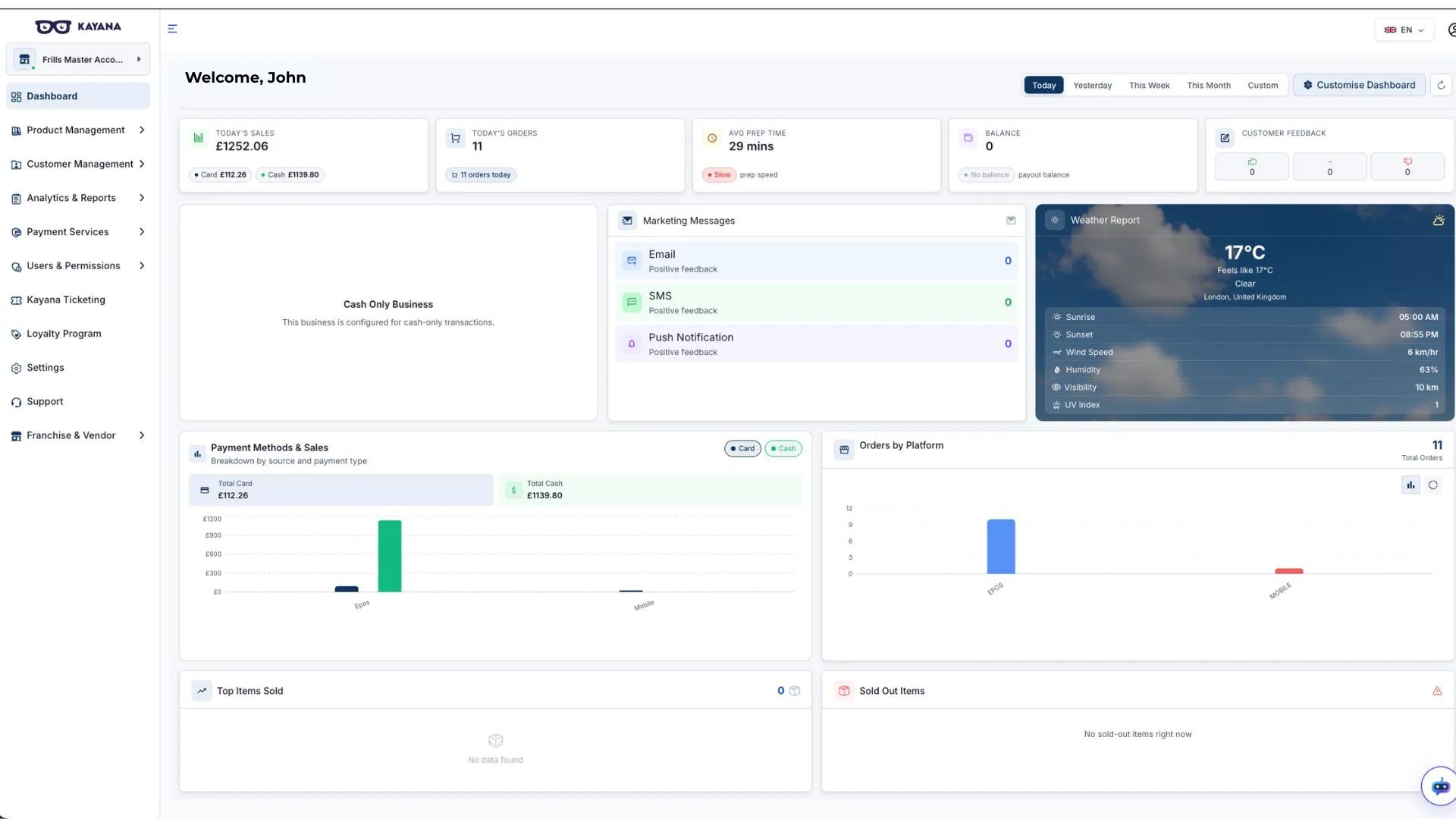
Step 1. Log in to Kayana Partner Admin using your credentials.
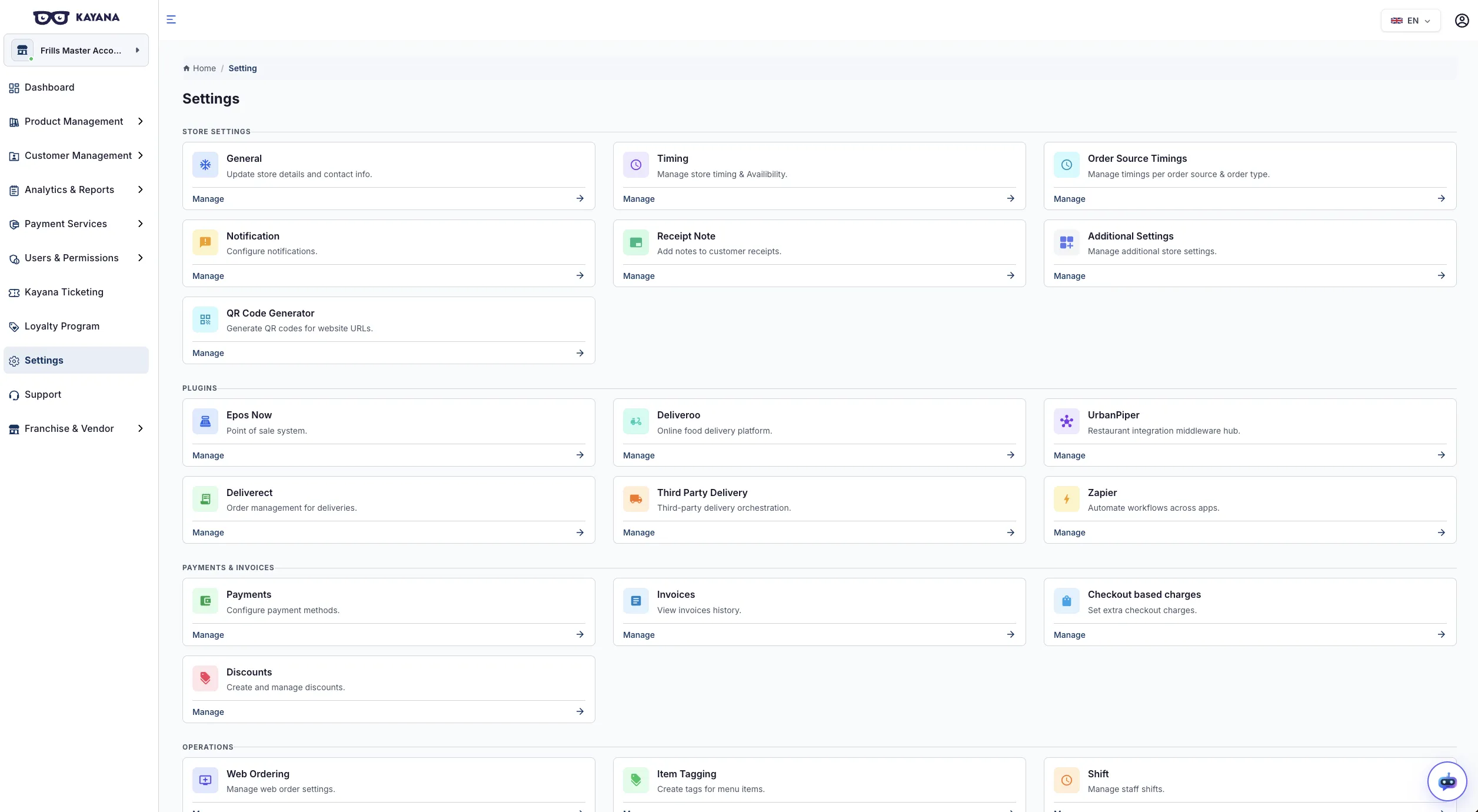
Step 2. From the left-hand sidebar, select Settings.
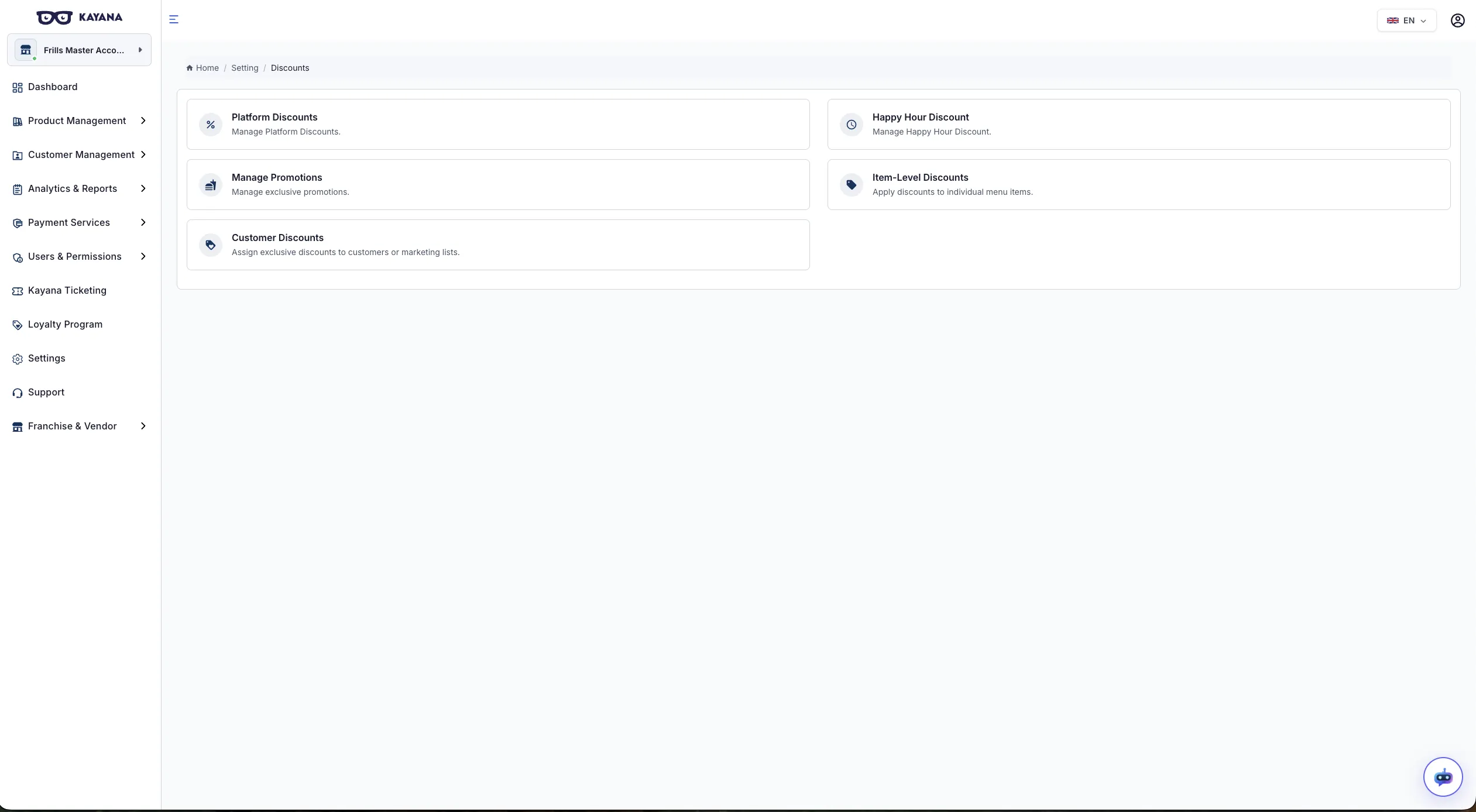
Step 3. Select Discounts.
Step 4. Click Platform Discounts. The Platform Discounts screen will open, displaying all existing platform discounts. You can filter existing discounts by platform using the filter bar: All, EPOS, MPOS, Kiosk, Web, QR, Mobile, Kayana Eats, Kayana Tickets.
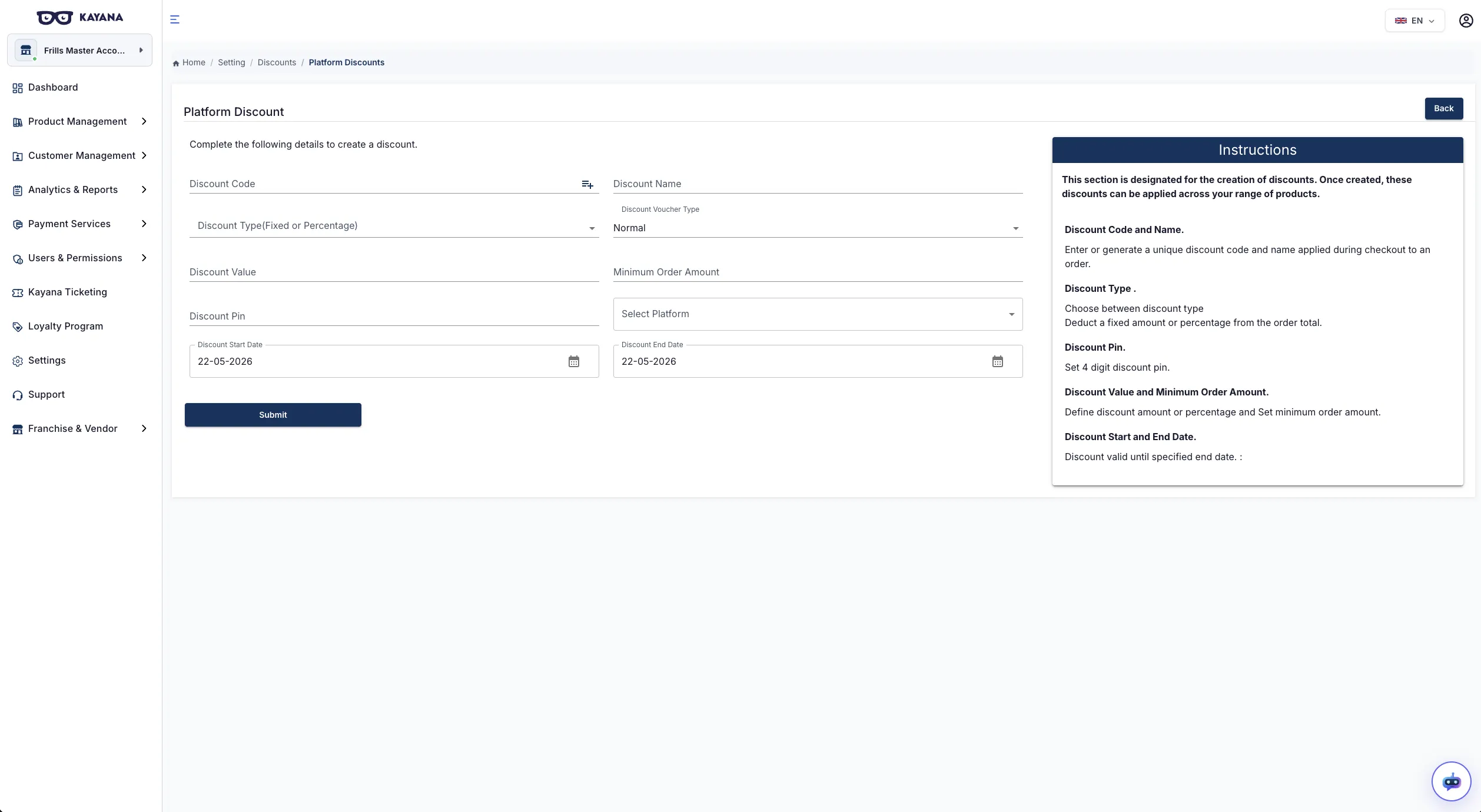
Step 5. Click the Add Platform Discount button in the top right corner of the Platform Discounts screen. The Platform Discount form will open.
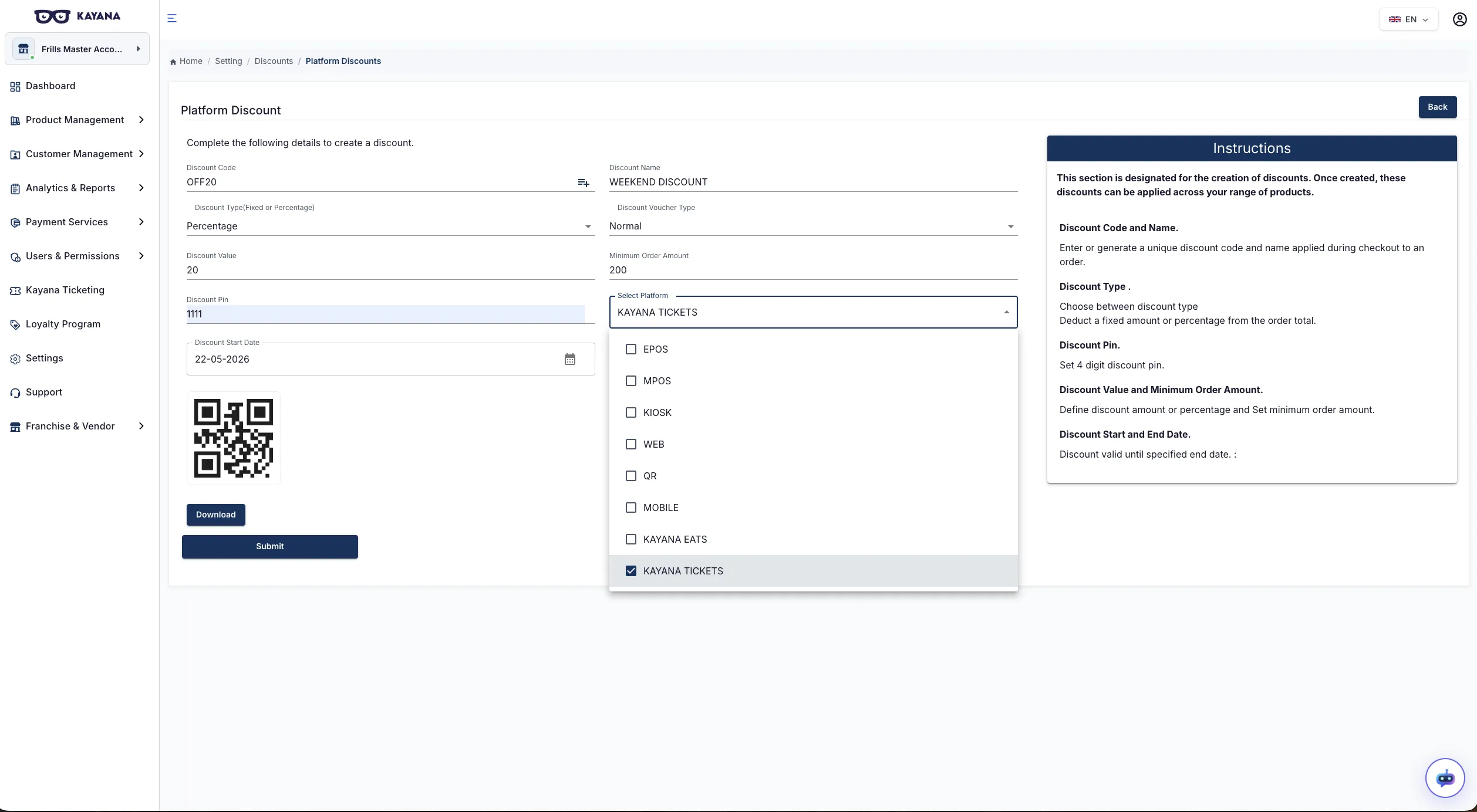
Step 6. Fill in the required details:
Discount Code Enter a unique promo code. This is the code that customers will enter at checkout on Kayana Tickets to apply the discount. As soon as you enter a discount code, a QR code is automatically generated at the bottom of the form. You can download this QR code using the Download button.
Discount Name Enter a name for the promo code. This is for internal reference and helps identify the promo code in your list.
Discount Type Select the type of discount from the dropdown:
- Fixed — deducts a fixed amount from the total
- Percentage — deducts a percentage from the total
Discount Voucher Type Select the voucher type from the dropdown:
- Normal — a standard promo code that can be used without restrictions
- Threshold — the promo code applies only when the order reaches a minimum value
- Usage Limited — the promo code can only be used a set number of times
- First Order Discount — the promo code applies to a customer's first booking only
Discount Value Enter the discount amount or percentage, depending on the Discount Type selected.
Minimum Order Amount Enter the minimum order value required for this promo code to be applicable. Leave blank if there is no minimum order requirement.
Discount Pin Enter a 4-digit PIN for this promo code. This PIN can be used as an additional layer of verification.
Select Platform Select Kayana Tickets from the dropdown. This is the only difference between creating a standard platform discount and creating a promo code for Kayana Tickets. You must select Kayana Tickets for the promo code to work on the Kayana Tickets platform.
Discount Start Date Select the date from which this promo code becomes active using the date picker. Defaults to today's date.
Discount End Date Select the date on which this promo code expires using the date picker. The promo code will be valid until the specified end date.
Step 7. Once all details are filled in, click the Submit button at the bottom of the form.
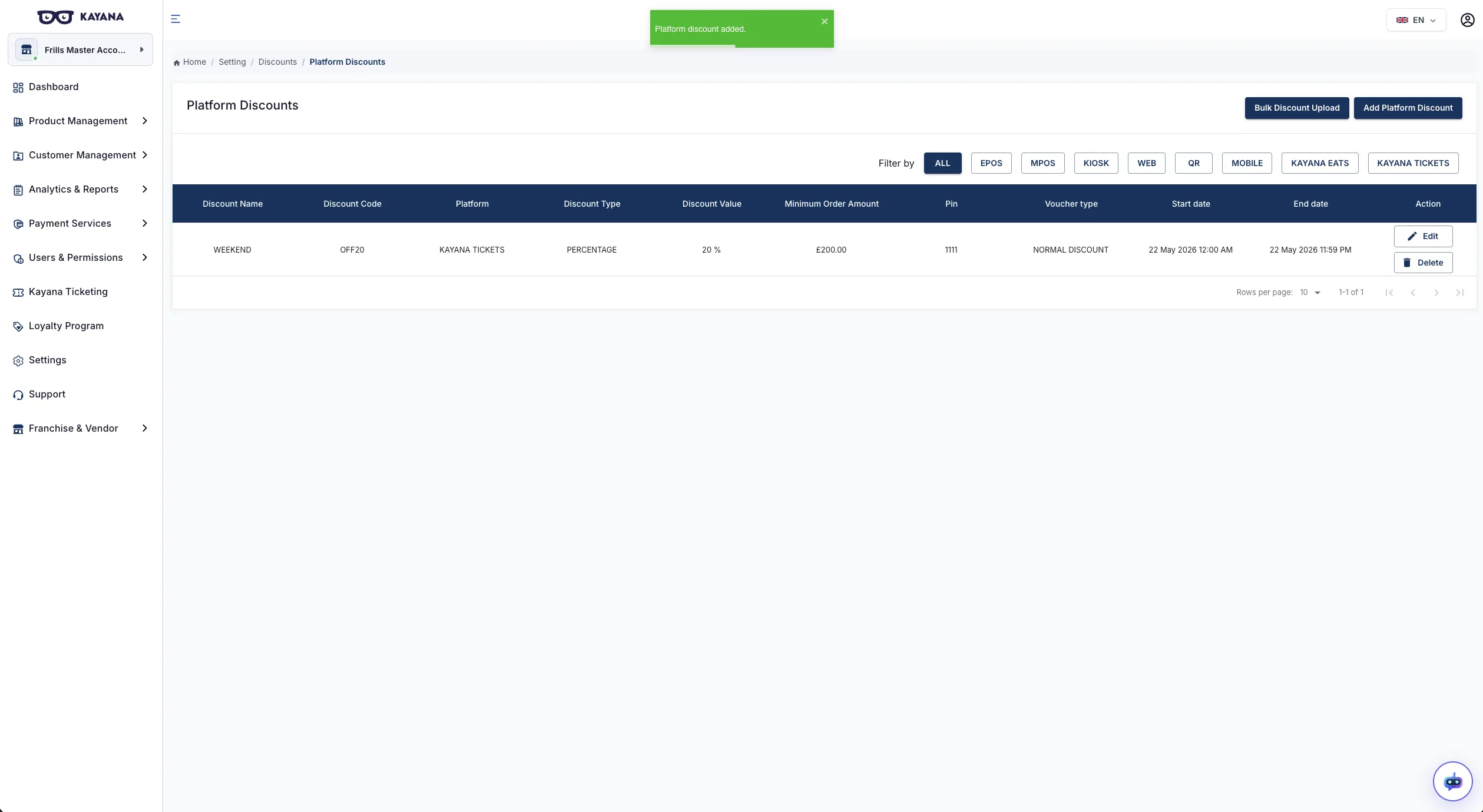
The promo code will be created and will appear in the Platform Discounts list on the Platform Discounts screen. You can copy the promo code from the list and share it with customers for use on Kayana Tickets.
Next Steps
To learn how to apply a promo code when booking a ticket on Kayana Tickets, refer to the How to Apply a Promo Code on Kayana Tickets guide.