
How to Set Up a Self-Service Kiosk in Your Restaurant: A Step-by-Step Guide
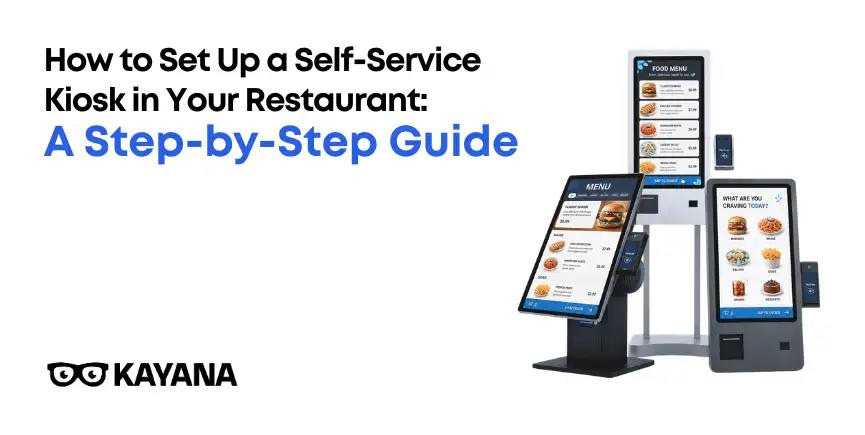
Your lunch rush hits. Six customers are queuing. Your one counter staff member is mid-order, trying to remember if the customer asked for no onions. And the person at the front of the queue is about to ask for a menu swap that takes two minutes to process.
Sound familiar? It's one of those moments where you quietly think: there has to be a better way. There is.
Self-service kiosks are no longer just something the big chains use. Restaurants of all sizes are adopting them, and the results speak for themselves. But knowing how to set up a self-service kiosk in your restaurant is what separates a kiosk that genuinely works from one that just sits there confusing customers. This guide walks you through exactly how to do it.
Before installing a kiosk, it is useful to understand the broader impact this technology can have. Explore the advantages of self-service kiosks for restaurants.
30%
rise in average order value reported after kiosk adoption (Restroworks, 2025)
40%
faster order processing time with self-service kiosks (Restroworks, 2025)
61%
of diners want more kiosks available in restaurants (Tillster, 2025)
First, understand what you're actually buying into
A self-service kiosk isn't just a touchscreen. It's the front of a connected system: customer-facing ordering, integrated payment, live kitchen routing, and real-time data. When it all works together, your team stops taking orders and starts focusing on making and delivering food.
That's the bit most guides skip over. The kiosk itself is the easy part. How you connect it determines whether it delivers results or drains your budget.
Not sure if a self service kiosk is right for your restaurant?
Kayana's specialists can walk you through what works for your setup, no obligation. Whether you're a single site or growing chain, we'll give you an honest picture.
Step 1: Map out your operational goals before anything else
Before you look at hardware, ask yourself: what problem are you actually trying to solve? Reducing queues during peak times? Cutting order errors? Increasing average spend? Training new staff faster?
Your answer shapes every decision that follows: how many kiosks you need, where they go, and how your menu should be structured on them.
One of the biggest reasons restaurants consider kiosks is their potential to improve the ordering process. Learn how self-service kiosks reduce waiting times in restaurants.
Write down your three busiest hours of the week
Note where your biggest service bottleneck sits (ordering, payment, or handoff)
Identify your current average order value and set a target uplift
Decide whether you want kiosks to fully replace counter ordering or run alongside it
Step 2: Choose the right kiosk type for your space
Not every self-service kiosk setup suits every restaurant. A small café with limited floor space has different needs to a 60-cover fast food outlet. Here's a quick breakdown:
Type | Best for | Key Consideration |
|---|---|---|
Counter-top self-service kiosk | High-traffic QSRs, food courts | Needs floor space, but highest visibility |
Requires installation; frees up the floor entirely | Cafés, smaller fast food outlets | Takes up counter space; suits limited floor plans |
Wall-mounted kiosk | Tight spaces, queue management | Requires installation; frees up the floor entirely |
Outdoor Self-Service Kiosks | Outdoor dining areas, drive-throughs, theme parks, stadiums, and venue entrances | Captures customers before they enter, reducing internal queue pressure |
Think about your queue flow, too. A kiosk placed awkwardly near the door creates chaos. Position them so customers can order, step aside, and not block the entrance or handoff area.
Step 3: Nail the EPOS integration (this is the critical bit)
Here's where a lot of restaurants get unstuck. A kiosk that isn't talking to your EPOS in real time is just a fancy order-taker.
You want orders flowing directly to your Kitchen Display System the moment payment is confirmed, with no manual re-entry, no double-checking, and no extra steps for your team.
When planning your setup, you should also consider how the kiosk will connect with your existing systems. Find out whether you need separate systems for EPOS, kiosks, KDS and payments.
What solid EPOS integration looks like in practice:
1. Menu sync
Any price or item changes made in your EPOS updates are instantly reflected in the kiosk. No more out-of-date pricing showing on the screen.
2. Live order routing
Orders go straight to the KDS in the kitchen, tagged clearly by order number. Your kitchen sees it the second the customer confirms payment.
3. Inventory awareness
With Inventory Management, when something sells out, it's automatically hidden from the kiosk. No awkward "sorry, we don't have that" conversations.
4. Payment processing
Card, contactless, mobile wallets. Payments are processed through your existing system with no separate reconciliation needed.
Step 4: Build your kiosk menu strategically, not just digitally
Don't just copy your printed menu onto a screen. The kiosk is a sales tool as much as an ordering device. Think about what a well-trained staff member would upsell in conversation, then build that logic into the interface.
Feature high-margin items with strong images at the top of each category
Group combos prominently; customers are more likely to build a meal when it's pre-packaged visually
Add smart modifier prompts (add a sauce, upgrade to large, add a side) at the basket stage
Keep the visual design clean; too many options on one screen slows customers down
Use accurate, appetising food photography. Blurry or generic images hurt conversion
Taco Bell found that customers on digital ordering platforms spent 20% more than those ordering at the counter. A well-structured kiosk menu is a significant part of why.
Struggling with how to structure your kiosk menu for upsells?
Kayana's team has helped restaurants optimise their kiosk menus for higher average order values. It's one of the quickest wins in the setup process.
Step 5: Test before you launch publicly
Run a proper test phase before your kiosk goes live. It sounds obvious, but a surprising number of operators skip this step and discover problems when a customer is standing at the screen, looking confused.
Things to test specifically:
Place a full order, including customisations and check it arrives correctly on the KDS
Test every payment method available (card, contactless, mobile)
Check that sold-out items hide automatically
Simulate a network interruption and confirm the fallback works
Walk through the ordering flow as a first-time customer, ideally with someone who hasn't seen it before
Step 6: Brief your team properly
Kiosks don't replace your staff. They free your staff. But that shift in role has to be managed. Your team needs to understand the kiosk isn't a threat to their job. It's what gets rid of the monotonous part of the job.
Designate one or two team members as kiosk helpers during the first few weeks, particularly for older customers or those unfamiliar with touchscreen ordering. That personal touch during the transition builds confidence and prevents frustration.
Step 7: Use the data it gives you
Once your kiosk is up and running, the real value goes beyond just faster ordering. You've got data on peak ordering times, popular items, upsell conversion rates, and average basket size. That's intelligence most restaurant owners didn't have before.
Review it weekly at first. Look at which upsell prompts are converting and which aren't. Adjust your menu layout accordingly. A kiosk that's actively managed outperforms one that's simply switched on and left.
What to expect from the numbers
Metric | Typical improvement | Source |
|---|---|---|
Order processing speed | Up to 40% faster | Restroworks, 2025 |
Average order value | 15–30% increase | MenuSifu; TIG, 2025 |
Queue reduction | 25–40% shorter wait times | Lavu, 2025 |
Order accuracy | Near-zero manual entry errors | InTouch Insight, 2025 |
Customer preference for kiosks | 61% want more kiosks available | Tillster, 2025 |
Ready to learn how to set up a self-service kiosk in your restaurant?
Knowing how to set up a self-service kiosk in your restaurant isn't complicated, but it does require the right system behind it. The hardware is only as good as the integration, and the integration is only as good as the partner you choose to work with.
Kayana's kiosk solutions are built specifically for fast service restaurants, connected directly to our EPOS, KDS, and MPOS systems. No stitching together platforms. No guessing whether your order made it to the kitchen.
See how Kayana's self-service kiosk fits your restaurant
Get a tailored walkthrough of our kiosk setup, what it integrates with, and what your restaurant could realistically gain. No hard sell, just an honest conversation with someone who knows the tech.