
Understanding Ticket Sales on the Manage Orders Screen in Kayana Partners Admin
Last updated Jun 19, 2026
Overview
This guide explains how to view and manage ticket sales on the Manage Orders screen in Kayana Tickets via Kayana Partner Admin. The Manage Orders screen provides a complete overview of all ticket orders, including tickets sold, total revenue, cancelled and refunded transactions, and free tickets issued. You can filter orders by date, search by event or customer name, and export order data as a CSV file.
How to Access the Manage Orders Screen
Step 1. Log in to Kayana Partner Admin using your credentials. Partner Admin Login: https://partners.kayana.co.uk/ 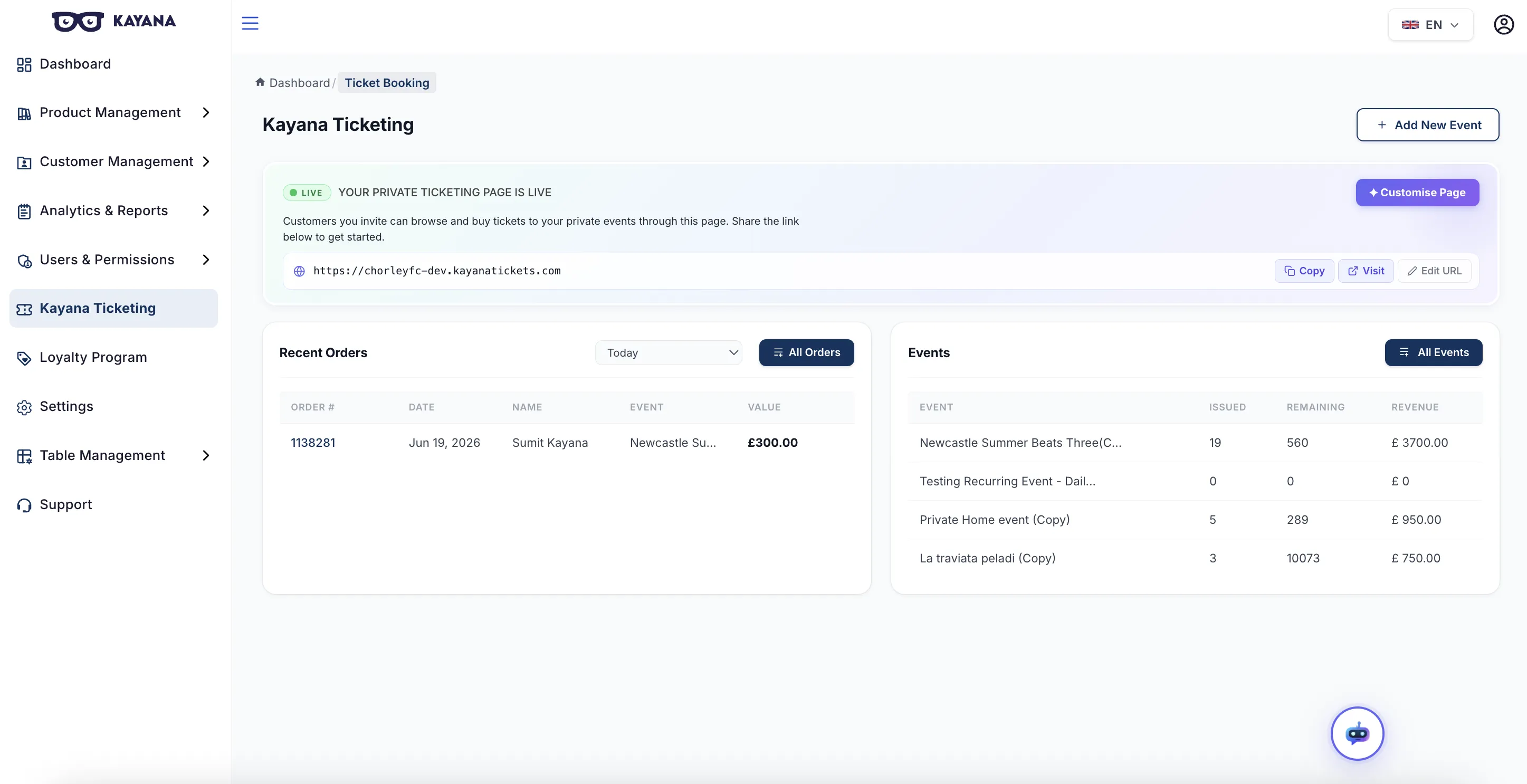
Understanding the Manage Orders Screen
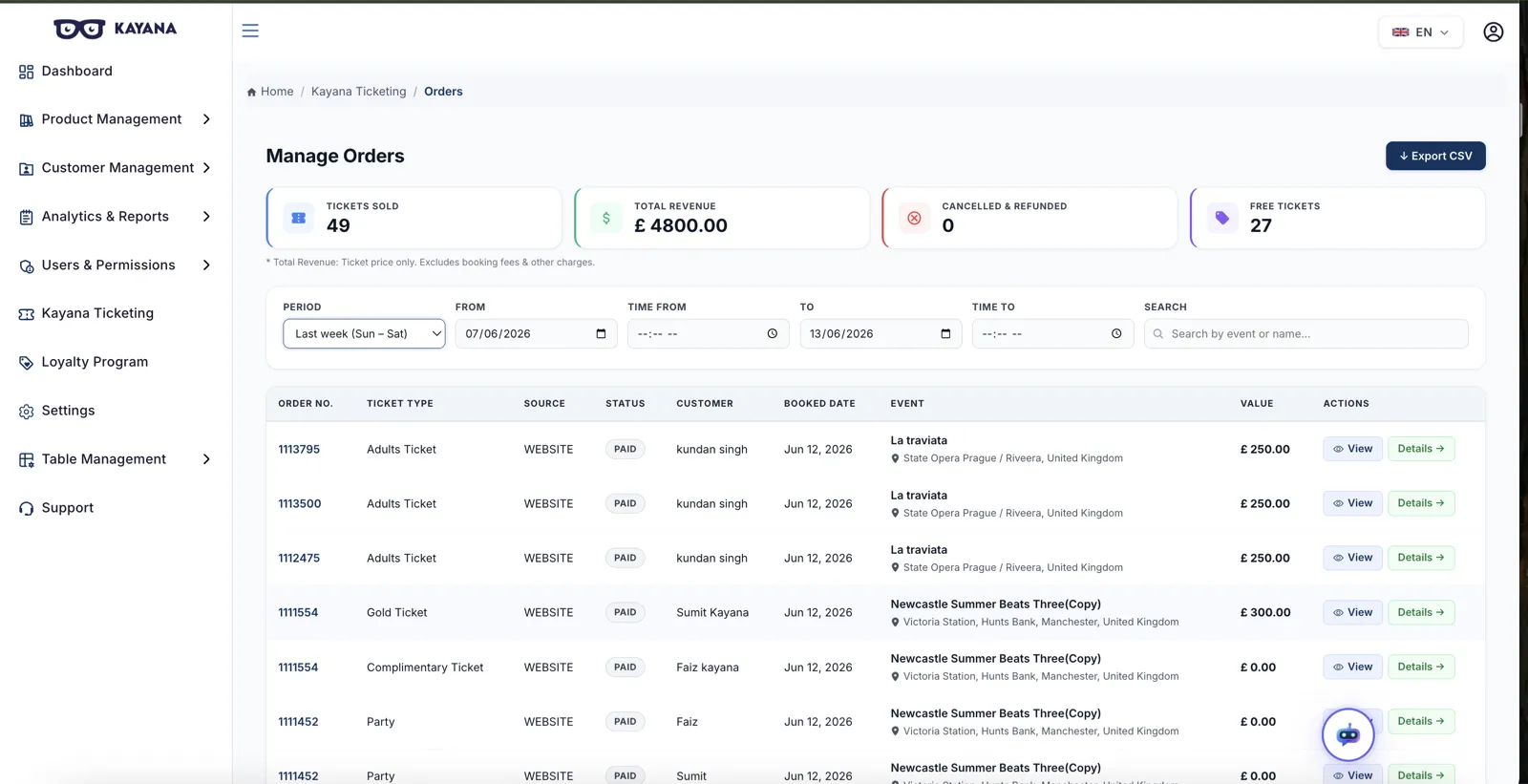
The Manage Orders screen provides a complete overview of your ticket sales with the following key metrics displayed at the top: Tickets Sold Total number of tickets purchased across all events. Total Revenue Cumulative ticket price revenue. Note: This excludes booking fees and other charges. Cancelled & Refunded Count of orders that have been cancelled or refunded. Free Tickets Number of complimentary tickets issued.
Filters and Search Controls
Below the metrics, you will find filter and search options to narrow down the orders displayed: Period A dropdown to quickly filter by a preset time range. Options include:
- All
- Today
- This Week (Sunday – Saturday)
- Last Week (Sunday – Saturday)
- This Month
- Last Month
- Custom
Selecting Custom activates the date and time fields below. From / To Date pickers that allow you to define a specific date range when using the Custom period. Time From / Time To Optional time fields to refine the filter to specific hours within your chosen date range. Search A text field to search orders by event name or customer name. Type the event or customer name and the table will update to show matching orders.
Orders Table
Below the filters is the main orders table. Each row represents one order. The table displays the following columns:
| Column | Description |
|---|---|
| Order No. | The unique identifier for each order. The order number is clickable for quick reference. |
| Ticket Type | The category or tier of the ticket (e.g. Gold Ticket, VIP Ticket, Early Bird). |
| Source | Where the order originated (e.g. WEBSITE, MOBILE, KIOSK). |
| Status | The current payment status of the order (e.g. PAID, Cancelled, Refunded). |
| Customer | The name of the person who placed the order. |
| Booked Date | The date the order was created. |
| Event | The event name and venue location. |
| Value | The monetary value of the order in GBP (£). |
| Actions | Two action buttons for each order: View and Details (see below). |
Interacting with an Order
Each row in the orders table has two action options in the Actions column:
| Action | What It Does |
|---|---|
| View | Opens a quick summary panel (an inline detail card) on the screen showing: Order number, Status, Event name, Venue, Event dates, Purchaser name, Booking date, and Total value. A secondary View button within this panel can be clicked to open the full order detail page. |
| Details → | Navigates directly to the full order detail page for that specific order, where you can see the complete order breakdown including ticket holder information, payment details, and order history. |
Exporting Orders
To download order data as a CSV file: Step 1. Apply any filters or search criteria to narrow down the orders you want to export (optional). Step 2. Click the ↓ Export CSV button in the top-right corner of the page. The currently filtered order list will be exported as a CSV file, which you can open in Excel or any spreadsheet application for further analysis or record-keeping.
Next Steps
To create events and add ticket types before managing orders, refer to the Guide to Creating and Managing Events on Kayana Tickets guide.