
Adding and Managing Business Images in Kayana Self-service Kiosk from Kayana Partner Admin
Last updated Dec 4, 2025
This guide walks the business partner through the steps to upload and manage images in the Kayana Self-Service Kiosk (SSK), the visual content used for their Self-Service Kiosk (SSK) via the Kayana Partner Admin portal.
This ensures the kiosk displays the correct branding for the Background Wallpaper and the different images throughout the ordering flow.

1. Log In and Navigate to Settings
- Navigate to the Kayana Partner Admin login page and Log In.
- From the left-hand menu, click Settings.
- Click Account Settings.
- On the Account Settings page, ensure you are in the General section (which contains Business Info and Logo/Image fields).
2. Manage Kiosk Background and Order Type Images
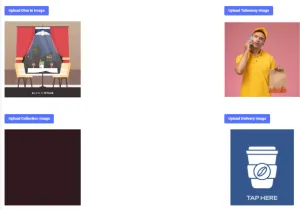
Scroll through the page to find the image upload sections.
| Image Type | Button Name |
| Dine In Image | Upload Dine In Image |
| Takeaway Image | Upload Takeaway Image |
| Collection Image | Upload Collection Image |
| Delivery Image | Upload Delivery Image |
| Cart Image | Upload Cart Image |
| Cancel Cart Image | Upload Cancel Cart Image |
| Kiosk Background Image | Upload Kiosk Background Image |
| Make It a Meal Image | Upload Make It a Meal Image |
3. Upload Images and Save
- Click the corresponding blue Upload button for the image you wish to change (e.g.,
Upload Dine In Image). - A file explorer window will open. Select the new image file from your computer.
- Once the file is selected and the image is uploaded, hit the "Done" button.
- Repeat this process for all images you want to update.
- After making all changes, scroll down and click the blue Update button at the bottom of the section to save and apply the new images to your Kiosk devices.
Next Steps: Troubleshooting Your Self-Service Kiosk
Once your images and branding are updated, make sure everything is displaying correctly on your devices. If your kiosk screen is blank, not loading, or hardware isn’t responding, refer to Troubleshooting & FAQs: Kayana Self-Service Kiosk for quick checks before contacting Kayana Support.