
How to Share a Ticket QR Code with a Customer via Kayana Partners Admin
Last updated Jun 19, 2026
Overview
This guide explains how to download and share a ticket QR code with a customer via Kayana Partner Admin.
Steps
Step 1. Log in to Kayana Partner Admin using your credentials. Partner Admin Login: https://partners.kayana.co.uk/
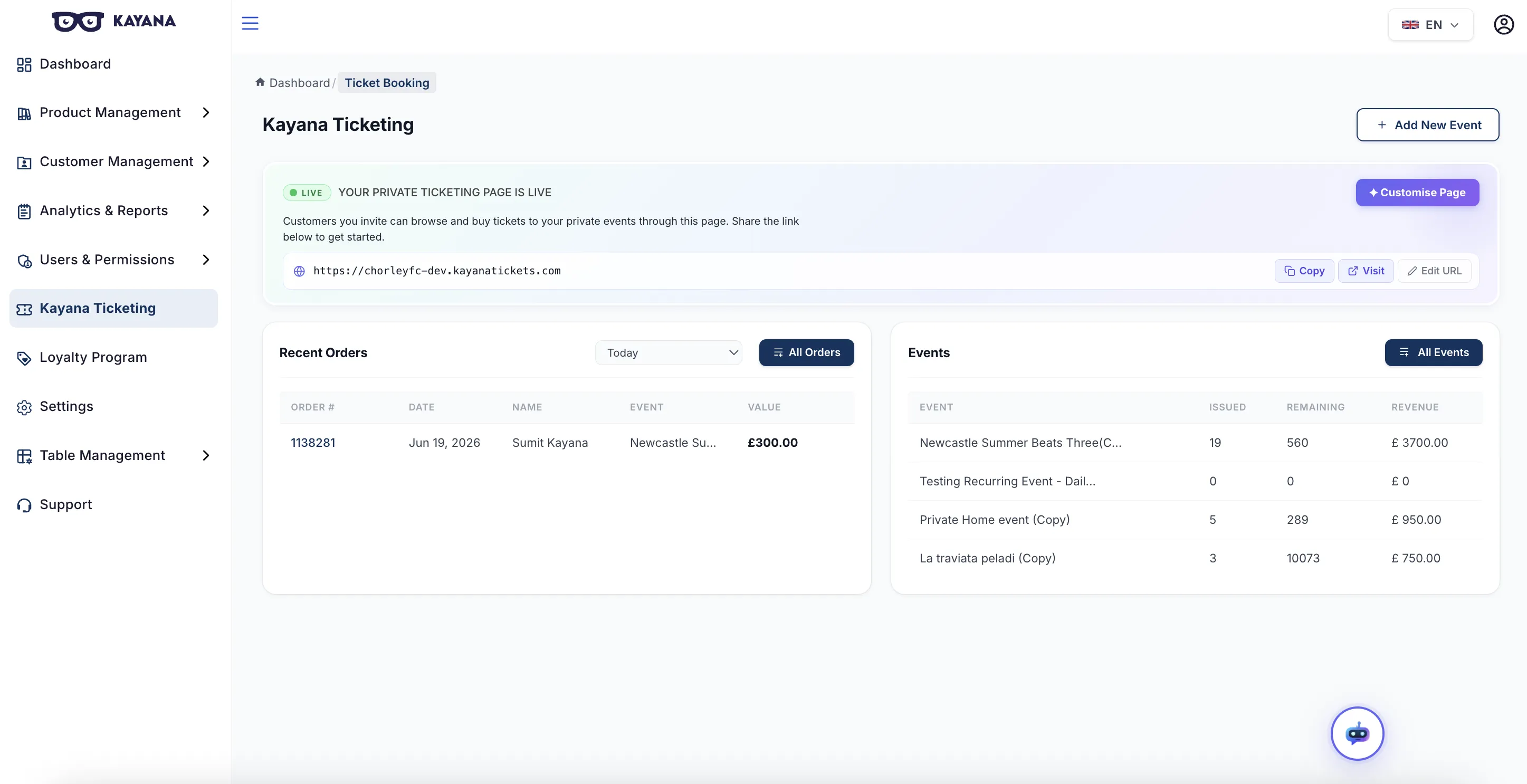
Step 2. From the left-hand sidebar, select Kayana Ticketing.
Step 3. Click All Orders in the Recent Orders section.
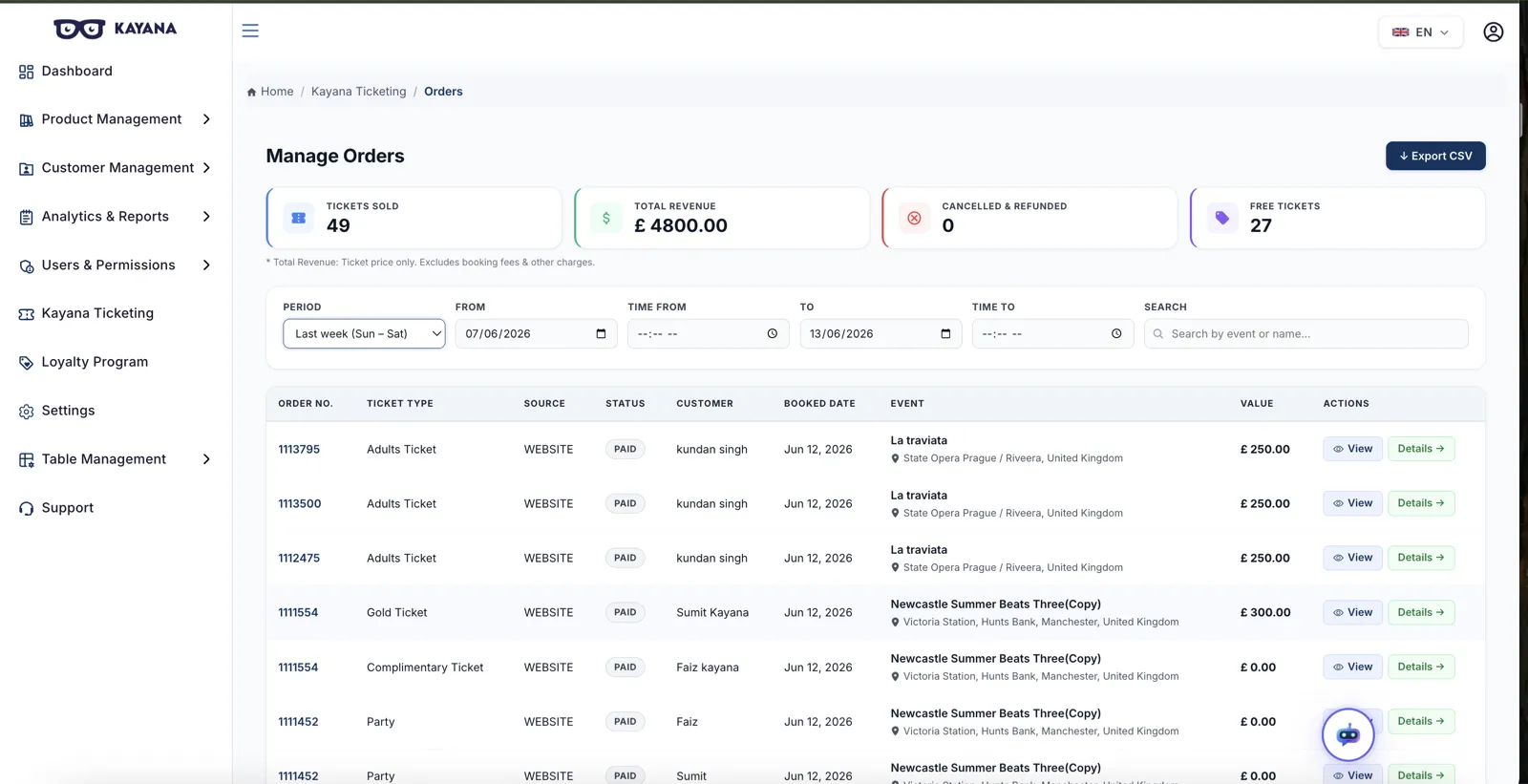
You will arrive at the Manage Orders page.
Step 4. Locate the order for which you need to share the ticket QR code.
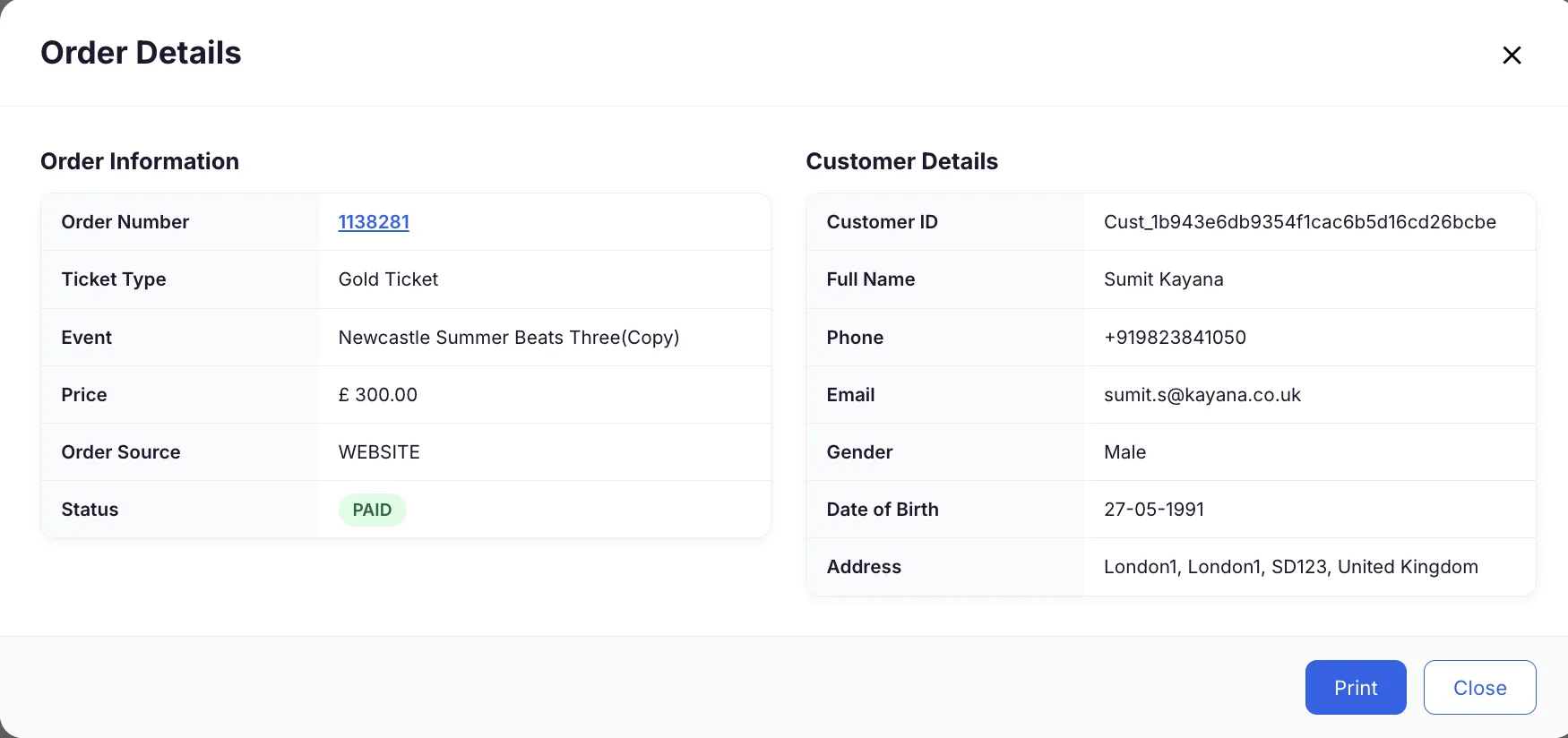
Step 5. Click the View button in the Actions column. The Order Details window will open, displaying the order information and customer details.
Step 6. Click the Print button at the bottom of the Order Details window. The ticket with the QR code will open in a print preview window.
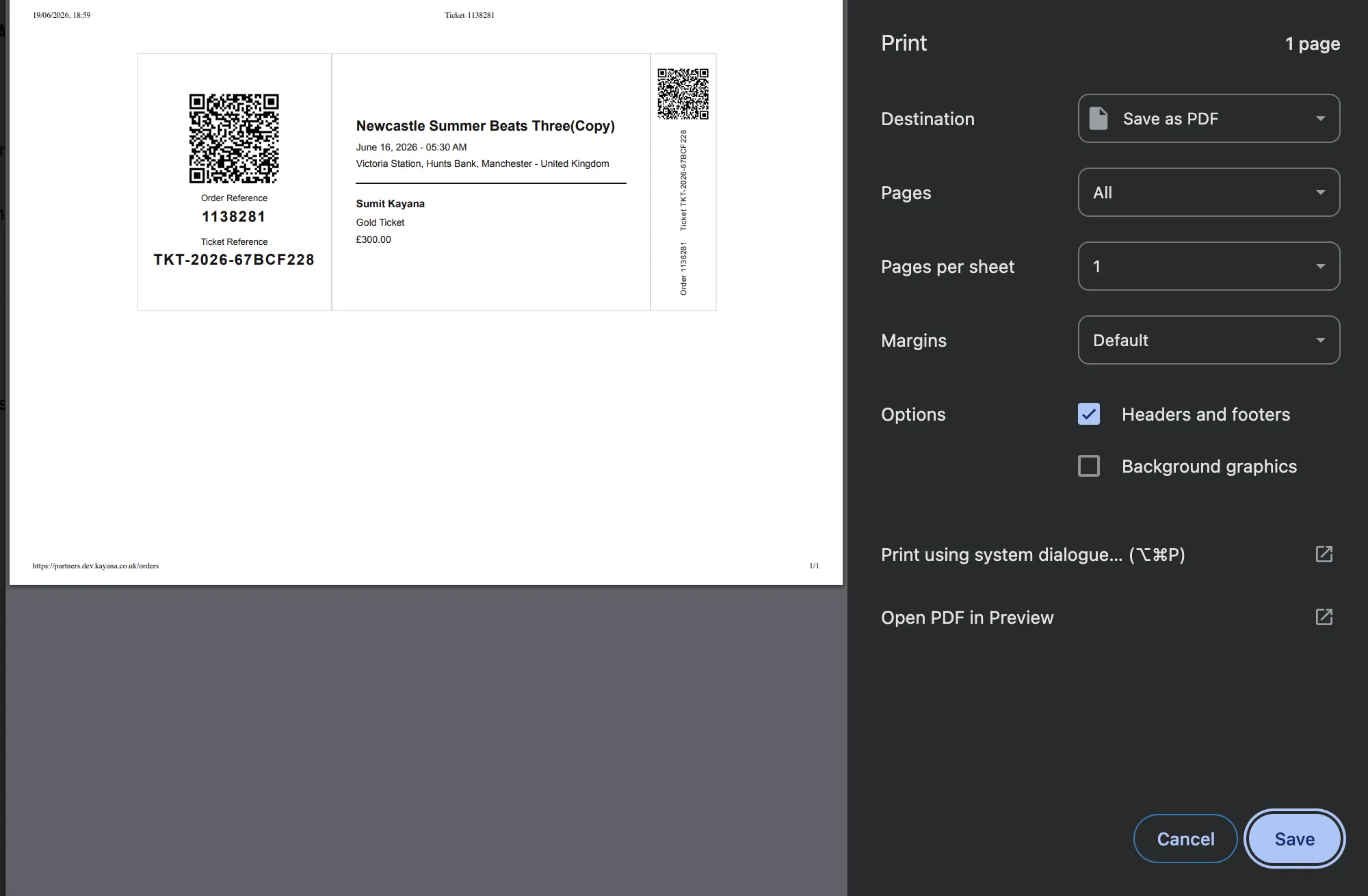
Step 7. Click Save to download the ticket with the QR code to your device.
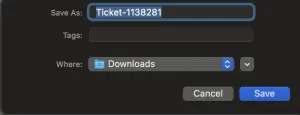
You can now share the downloaded ticket with the customer via email, WhatsApp, or any other communication channel. The customer presents this QR code at the venue for entry validation.
Next Steps
To manage and view all ticket orders, refer to the Understanding Ticket Sales on the Manage Orders Screen in Kayana Tickets guide.